Most sales teams have an official deck. Many also have dozens of unofficial ones: last quarter's version with a reworked pricing slide, a case study from two years ago that one rep still likes, a competitor slide someone built at midnight. Each copy drifts a little further from the brand and from the facts.
A sales slide library fixes this without taking flexibility away from reps. This guide covers what goes in one, how to build it on a single template, how to name and organize it so people actually find slides, who keeps it current and how a rep puts a deck together from it. The example throughout is Calder Robotics, a fictional company that makes robotic picking and assembly cells.
Why reps stop using the official deck
Reps rarely ignore the official deck out of stubbornness. They ignore it because something else is faster or safer. The usual reasons:
It doesn't fit the meeting. A 30-slide deck is too much for a 20-minute first call, and there's nothing in it for the buyer's industry.
They can't find the slide they need. Searching a shared drive takes longer than opening the deck they used last week.
It's out of date. One meeting with an old price or a retired product, and a rep stops trusting the file.
It breaks when they edit it. Text spills out of boxes, fonts change on another laptop, and a quick change takes half an hour.
Nobody said it changed. A new version appears in a folder, and half the team never hears about it.
Each of these is a design or ownership problem, not a discipline problem. Telling reps to use the official deck won't work while their own copy is quicker. The library has to become the fastest way to build a good deck.
What the deck should say, slide by slide, is covered in our guide to sales deck structure. This post is about the system behind it: how to give a whole team that structure without everyone keeping their own copy.
What goes in a slide library
A slide library has two parts: a core deck that almost every meeting uses, and modules that reps add or leave out depending on the buyer and the length of the meeting.
The core deck is the master sales deck, cut to the slides nearly every first meeting needs. For Calder Robotics, that's five slides: a title slide for the buyer, why change now, how a picking cell works, the rollout timeline and the next step. Keep it short. A core that's too long gets cut differently by every rep, which is how drift starts.
Modules are short sets of one to four slides, each built to make one case:
| Part | What it holds | Calder Robotics example |
|---|---|---|
| Industry modules | The buyer's problem in their words, with matching images | Warehousing, food and beverage, automotive parts |
| Proof | Case studies, results and customer quotes | One case study per industry, a results slide |
| Pricing and terms | Options, what's included, standard terms | Three options, with one recommended |
| Security and integration | Answers for IT, safety and procurement | How cells connect to existing systems, safety |
| Company and team | Who you are and who the buyer will work with | Company facts, the account team |
| Appendix | Detail for questions | Specifications, objections answered |
Use only customer names, logos and quotes you have permission to show, and record that permission next to the slide, so it doesn't get lost when the person who asked for it leaves.
The same library can serve decks later in the sale. A finalist presentation pulls the proof and pricing modules into the structure in our guide to proposal presentations. Customer reviews can reuse the company and results slides, as our QBR presentation guide describes.
Build it in six steps
You don't need special software to build a slide library. You need a few decisions made in the right order.
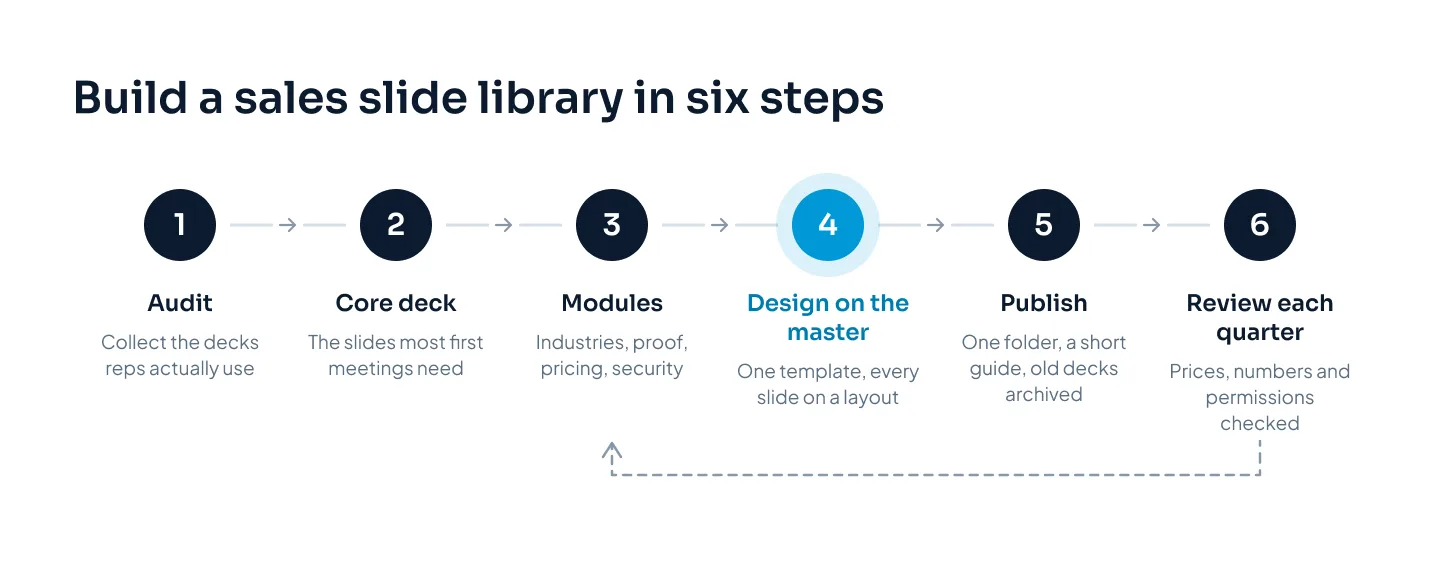
Audit what reps actually use. Collect the decks your team sent in the last few months, and ask each rep for the one they reuse most. Mark the slides that appear again and again, the ones that contradict each other (two prices for the same option is common), and the slides reps keep rebuilding. Those rebuilt slides show you what the library is missing.
Choose the core. Agree the five to ten slides almost every first meeting needs. Sales leadership signs it off, because the core is the company's sales story.
Write the modules. Each module must make sense wherever a rep drops it in. Open it with a slide whose title states what it proves, and don't refer back to "the previous slide".
Design everything on the master. Every slide in the library is built from the layouts of one template. More on this below.
Publish. Put the library in one place, write a one-page guide, archive the old decks and tell the whole team on the same day.
Review each quarter. The owner checks prices, numbers and permissions, and collects requests for new slides.
Steps 1 to 3 are writing and agreement. Most of the time goes there, and that's where it should go. A library of beautifully designed slides that say the wrong thing is just a faster way to spread mistakes.
Build it on one template
A library only works if every slide shares one slide master. Slides built on different templates look different side by side, and slides that arrive with their own formatting bring their own theme into the deck, with its fonts, colors and layouts.
The template should give you:
A layout for every slide type the library uses: title, section divider, big number, case study, comparison, pricing options, chart with takeaway, timeline, team and closing.
Placeholders on every layout, so reps type into a box that is already the right size, font and color.
Logo, footer and slide number on the master. Items placed on the master or a layout can't be selected or moved by accident in Normal view, so they stay put however many people edit the deck.
Theme fonts and colors from your brand guidelines, so pasted text and new charts pick up the brand without anyone thinking about it.
Native chart and table styles, so a rep can update a number without rebuilding the slide.
Save the template itself as a .potx file. Opening a .potx creates a new untitled presentation, so the original template stays clean however many decks are made from it.
If any of those terms are new, our guide to the PowerPoint slide master explains masters, layouts and placeholders, and our post on custom PowerPoint templates shows how a brand template is built layout by layout. For a real example, the launchwisely branded template is a branded presentation template from our studio.
Build the library in the tool your team presents from. A Google Slides team should have a Google Slides library on one theme, set in Google Fonts, rather than PowerPoint files converted on the way.
Organize it so people find slides
A library people can't search is a folder of old decks. Three things make it findable: one home, a clear structure and names that sort themselves.
One home. Keep the library in a single shared folder everyone on the team can open. Give most people view-only access to the library files, so nobody edits the master copy by accident. Reps copy slides out; they don't work in the library.
A structure that mirrors the library. One folder or file per part, numbered so the order never changes:
01 Core deck
02 Industries
03 Proof
04 Pricing and terms
05 Security and integration
06 Company and team
07 Appendix
99 Archive
One file per part keeps each file small enough to browse, and a rep looking for a case study knows exactly which file to open.
Names that sort. Use the same pattern for every file: company, part, topic and the month it was last checked, written year first (2026-10) so dates sort in order. For example, "Calder_Proof_Warehousing_2026-10.pptx". When the date in the name is old, everyone can see it.
Inside each file, put a contents slide first that lists the modules and when to use each one. Then give every slide a unique title. Action titles, which state the slide's point, make the library easier to scan and help in meetings too. Unique titles also help screen-reader users, and PowerPoint's Accessibility Checker flags missing and duplicate slide titles.
Archive, don't delete. When a slide or file is replaced, move the old version to the archive folder the same day. It stays available for reference, but nobody picks it by mistake.
Keeping it current
Libraries rarely fail on launch day. They fail six months later, when the prices change and nobody updates the pricing module.
Name one owner. One person, often in sales operations, marketing or sales enablement, is the only one who edits the library files. Everyone else sends requests. That sounds slow, but it's the only way to keep a single version of the truth.
Give each part a content owner. Each part of the library changes at a different speed, and each needs someone who answers for what it says.
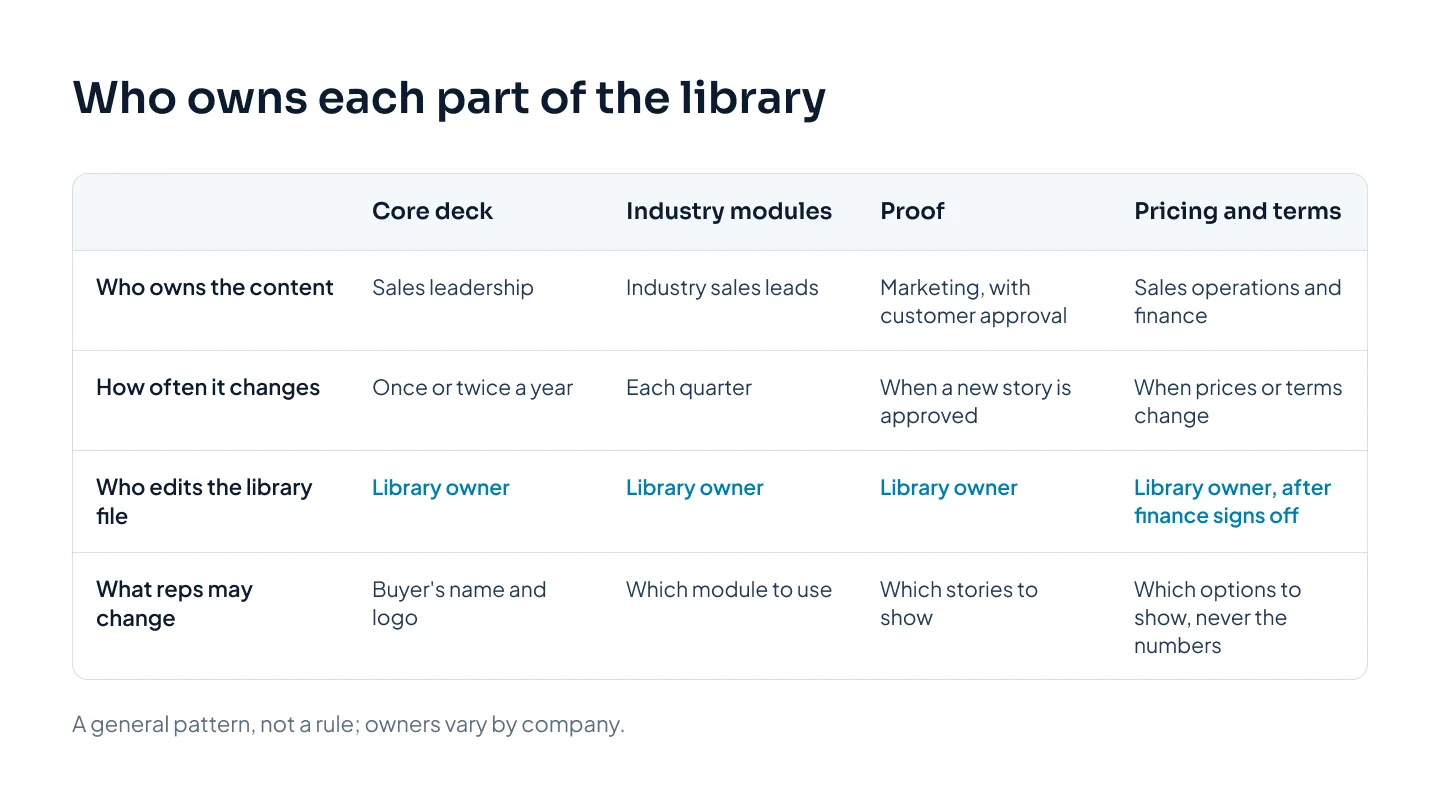
The pattern is simple. Content owners decide what a slide says. The library owner makes the change in the file. Reps change only their own copy, and only in the places the library allows.
Review every quarter. Put a recurring date in the calendar and check:
Prices and terms match what finance has approved
Every number on a proof slide is still current and approved for use
Permission still stands for every customer name, logo and quote
Product screenshots show the current product
Competitor slides are still accurate
Requests from reps since the last review have been answered
Update between reviews when something big changes. A price change, a new product, a rebrand or a customer withdrawing permission can't wait for the quarter. Fix the slide, update the date in the file name and archive the old version.
Tell people what changed. Send a short note with each update: which slides changed, why, and where to find them. Three lines are enough. It saves reps from discovering a new price in front of a buyer.
Listen to the copies. When reps keep building the same slide themselves, the library is missing it. Ask each rep, once a quarter, for one slide they made on their own. Some will be worth adding.
A slide library stays useful as long as someone owns it. Without an owner, it's just one more old deck.
How reps assemble a deck
With the library in place, a rep builds a first-meeting deck in a few minutes:
Start from the core. Open the core deck file and save a copy named for the buyer and the date.
Add the modules this buyer needs. In PowerPoint, Home > New Slide > Reuse Slides opens a pane where you browse to a library file and click the slides you want. Leave "Keep source formatting" off, and the inserted slides take on your deck's theme. In Google Slides, File > Import slides lets you pick slides from another presentation; "Keep original theme" keeps their look, which you won't need when the library and your deck share one theme.
Tailor only what the library allows. Put in the buyer's name and their problem in their own words, and add their logo if you have permission. Never change prices, results or customer quotes.
Cut for the time you have. Remove modules that don't serve this meeting. Move anything you might need for questions behind the closing slide, as an appendix.
Check before you send. Every slide should come from the current library files, the fonts should hold on another computer, and the PDF for the leave-behind should read well on its own.
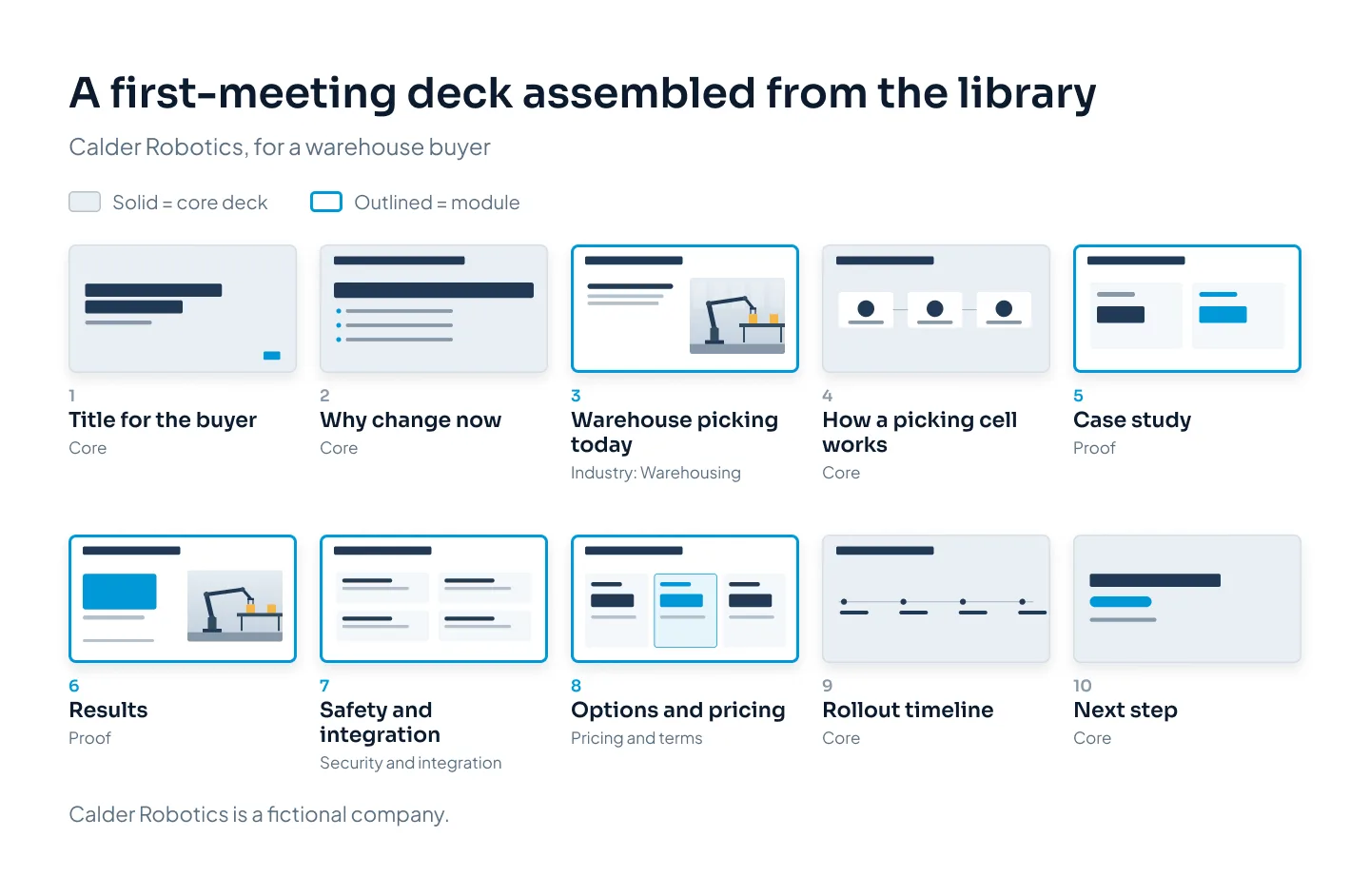
In the Calder Robotics example, a warehouse buyer gets the five core slides plus the warehousing industry module, two proof slides, the safety and integration slide and the pricing options. A food producer would get a different industry module and different proof, around the same core.
If you'd rather have the library built for you, our PowerPoint template design service covers the template, and our sales presentation design service covers the slides that go into it. At Pixel Presentation, templates start at $150, depending on the number of layouts and libraries, and take 5–7 working days. Deck design is $10 a slide, and sales decks take 5–8 working days. The pricing estimator shows your exact price before you order.