Most company templates fail quietly. Someone downloads a good-looking file and the team starts using it. A few months later, every deck looks slightly different: the logo in three places, two versions of the brand blue, titles that jump around from slide to slide.
A custom template stops that by building the rules into the file. This post explains what goes into one, why off-the-shelf templates break and how a brand template is built step by step. By the end, you'll know what to ask for and what to check before you sign off.
What a custom template is (and isn't)
A custom PowerPoint template is a file where the design lives in the slide master, not on individual slides. It's usually saved as a PowerPoint template file (.potx). When someone clicks New Slide and picks a layout, the boxes for the title, text, pictures and charts are already in the right place, in the right font and color.
Two things it isn't:
- It isn't a deck. A deck is a set of finished slides about one topic. A template is the system future decks are built from. It should come with example slides, but they're there to show each layout in use.
- It isn't a theme file with your colors in it. Brand colors and fonts help, but they won't give you a team slide, a chart layout with room for a takeaway, or a picture box that crops every photo to the same shape.
| What you get | Colors and fonts only | Off-the-shelf template | Custom template |
|---|---|---|---|
| Your brand fonts and colors | ✓ | ✕ | ✓ |
| Layouts for your content | ✕ | ~ | ✓ |
| Built on placeholders | ✕ | ~ | ✓ |
| Charts in brand colors | ✓ | ~ | ✓ |
| Logo and footer on the master | ✕ | ~ | ✓ |
| A guide for your team | ✕ | ✕ | ✓ |
A "~" means partly, or only if the template was built carefully.
A template doesn't replace design skill. It stores it. If you're still working out what a good slide looks like, start with our guide on how to make a PowerPoint look professional. A template is where those rules get built in, so nobody has to remember them.
Why off-the-shelf templates break
Off-the-shelf templates are designed to look good as a preview. Holding up across years of decks made by people who aren't designers is a different job.
They're still the right choice for a one-off deck, a small team without brand guidelines, or a tight budget. For a company that presents every week, four problems show up fast.
Fonts that aren't on your computer
Many templates use fonts you don't have installed. PowerPoint swaps in a different font, line lengths change, and text spills out of its box. The same thing happens when you send a deck to a client who doesn't have your brand font.
Text boxes instead of placeholders
Many templates are built from loose text boxes drawn on each sample slide. They look fine until you need a new slide. There's no layout to pick, so people duplicate an old slide and type over it.
Text in loose boxes also doesn't show in Outline view. And slides without a real title get flagged by PowerPoint's Accessibility Checker, because screen readers rely on slide titles.
The wrong placeholders for your content
A template made for everyone fits nobody exactly. It might have a team layout with eight round photos but nothing for a chart with a takeaway, a product comparison or a quarterly update. Your team ends up forcing content into the wrong shapes, or drawing their own.
Logos pasted onto every slide
When the logo is pasted onto each slide instead of placed on the master, it drifts: a bit bigger here, nudged left there, missing on slide 14. When the brand updates its logo, someone has to fix every slide in every deck by hand.
How we build one, step by step
This is how our designers build a custom template on a PowerPoint template design project. The same steps work if you're building one yourself.
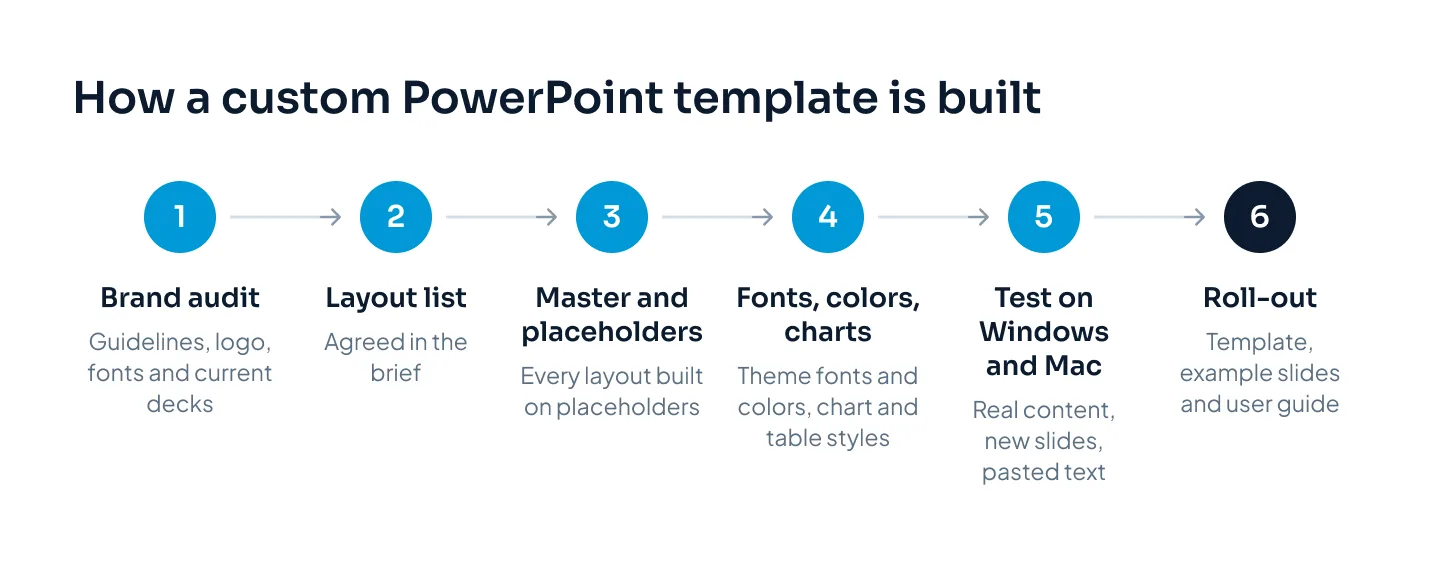
- Brand audit. We start with your brand guidelines (fonts, logo, colors) and the decks your team already uses. The guidelines say what the brand looks like. The real decks show what people need to present.
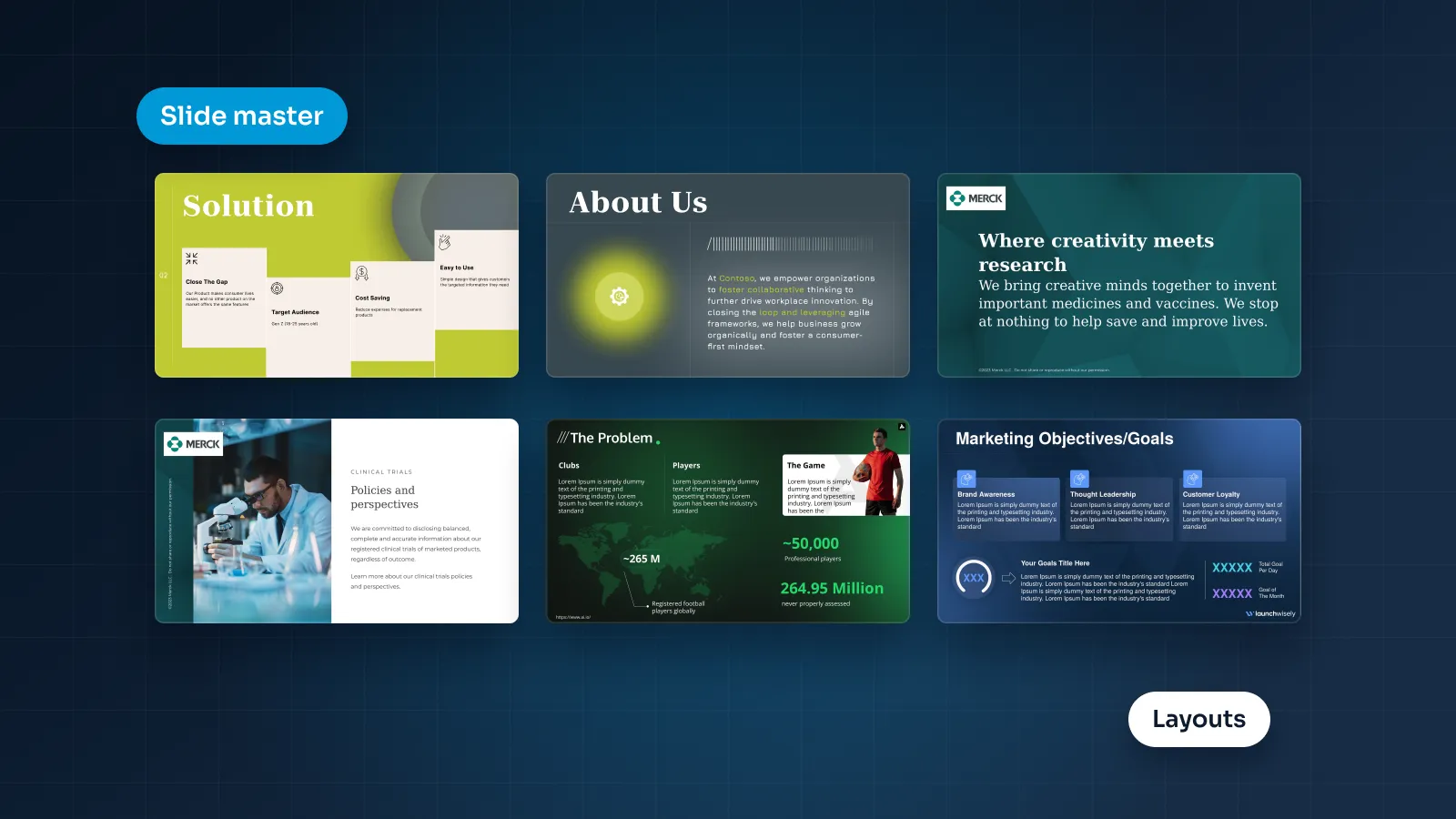
- Layout list. We agree the list of layouts in the brief. For a sales or corporate team, that might include a title slide, section divider, agenda, title and text, two columns, comparison, big number, chart with takeaway, table, picture and text, quote, team, timeline and closing slide. A short list of well-made layouts beats dozens nobody can tell apart.
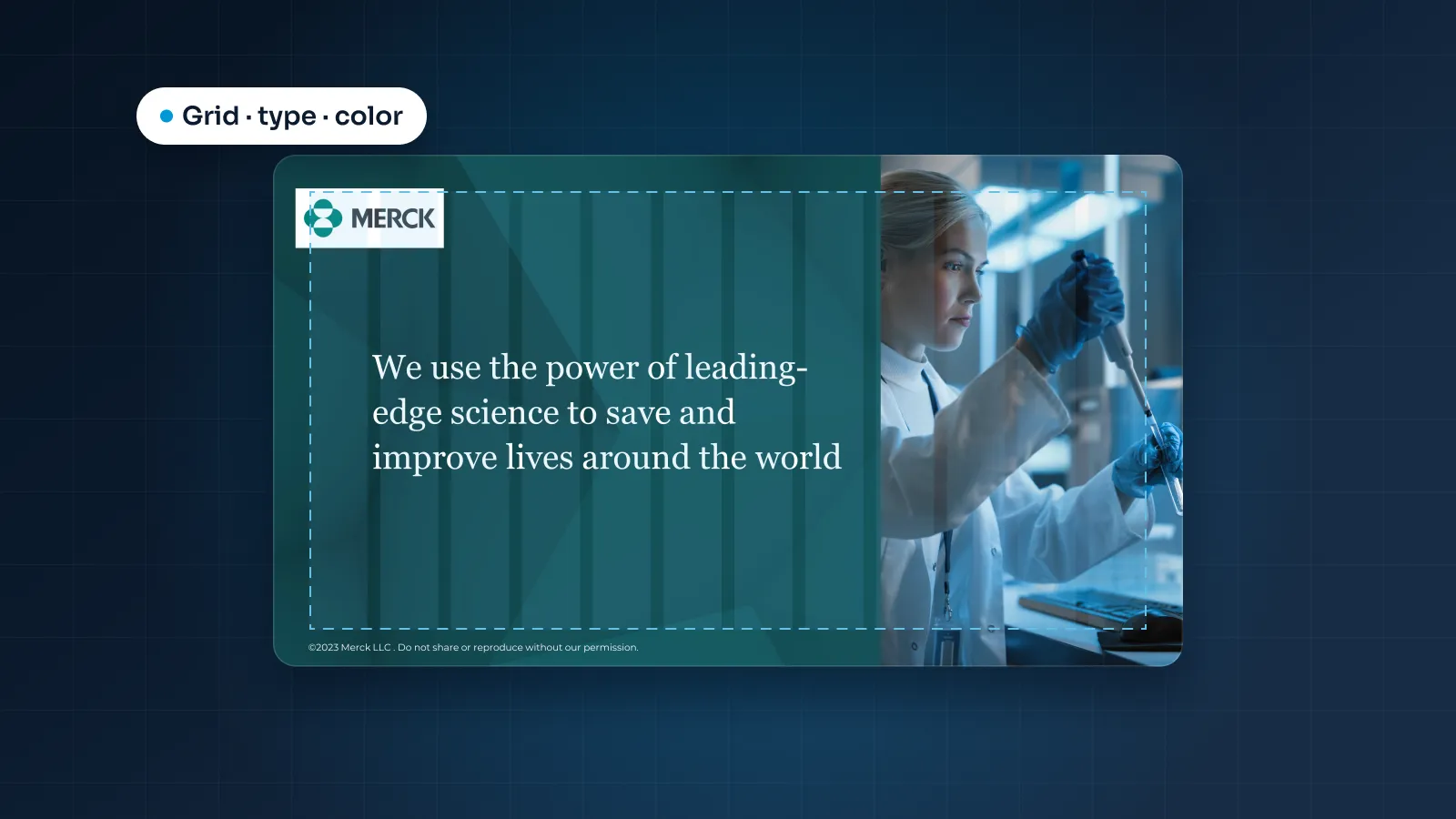
- Slide master. The master holds what every slide shares: background, margins, grid, logo, footer and slide number. It's set once, so nothing gets pasted onto slides later.
- Placeholders. Each layout gets placeholders for its title, text, pictures, charts and tables. They're sized to the grid, with prompt text that tells people what goes where.
- Theme fonts and colors. The heading and body fonts and the brand palette go into the theme, so every placeholder, chart and table picks them up.
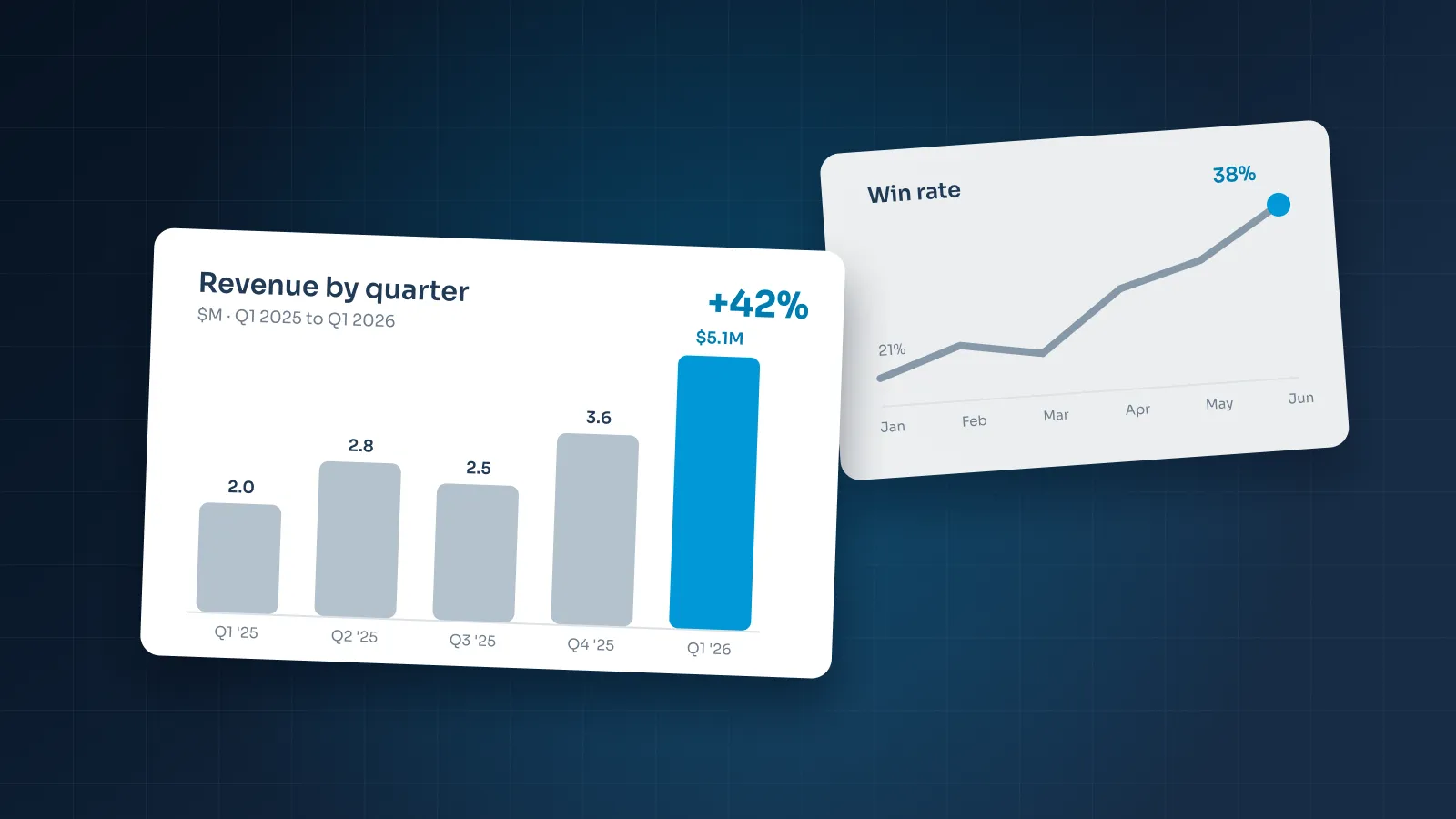
- Chart and table styles. We build example chart and table slides in the brand style with PowerPoint's own chart tool, so the team can copy one and change the data in Excel. For how those charts should look, see how to present data in PowerPoint.
- Testing on Windows and Mac. We use the template the way your team will, on both platforms. More on this below.
- Roll-out with a user guide. You get the template, example slides, an icon set and a short user guide that explains which layout to use for what.
The slide master, layouts and placeholders
These three terms cause most of the confusion around templates. In plain words:
- Slide master: the top slide you see under View > Slide Master. Anything on it, such as the background, logo, footer and default text styles, appears on every layout beneath it.
- Layouts: the slides listed under the master. Each one is a reusable arrangement, like "Title and content" or "Chart with takeaway". They're what people choose from the New Slide menu.
- Placeholders: the dashed boxes on each layout. Each one reserves a spot and a style for a title, text, a picture, a chart or a table. Whatever you type or insert takes the layout's position, font, size and color.
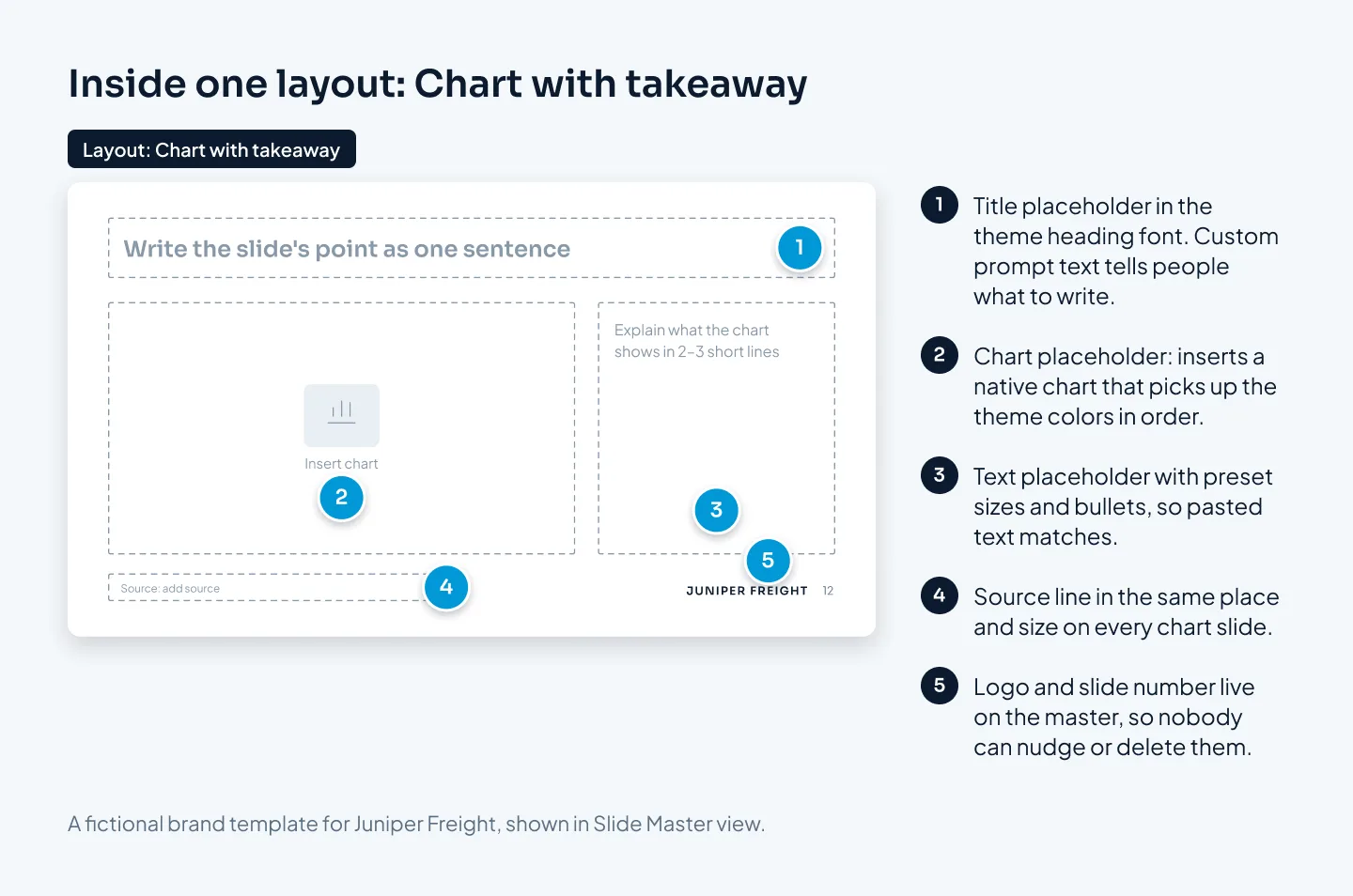
Placeholders are where a template earns its price. When every layout is built on them, four things follow:
- New slides start right. Pick a layout and type. Nobody measures margins or matches fonts by eye.
- Mistakes can be undone. If someone drags a placeholder out of place or changes its font, Home > Reset puts the slide back to its layout.
- Pictures behave. A picture placeholder crops any photo to the same shape and size, so a team page looks consistent even when the photos don't.
- Changes spread. Change the title style on the master, and every slide built on its layouts follows.
Theme fonts and colors that survive other computers
A template is only as consistent as the computer it opens on. Two theme settings decide most of that.
Theme fonts
A theme has two fonts: one for headings and one for body text. They sit at the top of the font list. When placeholders use the theme fonts, rather than a font name picked by hand, changing the theme updates every slide at once.
The catch is installation. If a computer doesn't have your brand font, PowerPoint substitutes another one and line breaks move. There are three ways to handle it:
- Install the font everywhere. If your IT team can put the brand font on every company computer, the template can use it for internal decks.
- Choose a widely available font for shared files. For decks other companies will open and edit, a template can use a common font that sits close to the brand font. Note that choice in the user guide, so nobody "fixes" it later.
- Embed, with care. PowerPoint can embed fonts in the file where the font license and your version of PowerPoint allow it. Treat embedding as a backup, not the plan.
If part of your team works in Google Slides, the version there should use Google Fonts, which display the same for everyone. If you're still choosing a platform, our comparison of Google Slides, PowerPoint and Keynote covers the trade-offs.
Theme colors
A PowerPoint theme has twelve color slots: four for text and backgrounds, six accents and two for hyperlinks. New charts use the accents in order, so the order matters. Accent 1 colors the first data series in a new chart, so it should be the color you most want people to notice.
When the brand palette is in the theme, the color picker shows it at the top, with lighter and darker shades underneath. People pick brand colors instead of guessing at them. And if the brand blue ever changes, it changes in one place.
Check contrast while you're there. Normal text needs a contrast ratio of at least 4.5:1 against its background, and large text at least 3:1. A light brand color can fail as a text color, so the theme may need a darker shade for text.
Testing and rolling it out
A template is finished when someone who isn't a designer can make a good slide with it.
Testing means using the template the way your team will, with real content. A short test plan:
- Open it in PowerPoint on Windows and on a Mac, in the versions your team actually uses.
- Add a slide from every layout and fill it with real text, not dummy copy.
- Paste text from an email or a Word document and check it takes the template's style. If it doesn't, paste with Keep Text Only.
- Drop a tall photo and a wide photo into every picture placeholder.
- Insert a chart, change its data in Excel and check the colors follow the theme.
- Run the Accessibility Checker for missing slide titles and reading order.
- Export a PDF and check nothing moved.
Then roll it out so people actually use it:
- Put it in one place. Save the template where everyone can find it, and remove old versions so nobody picks the wrong one.
- Ship the guide with it. A short guide shows which layout to use for what, how to reset a slide and how to add charts and pictures. Keep it short enough that people read it.
- Move old decks across properly. Paste the content into the new layouts slide by slide. Old slides weren't built on the new placeholders, so applying the template on top rarely lands cleanly.
- Name an owner. One person collects requests for new layouts and updates the template in one place, so copies don't multiply.
Before an important deck goes out, run through our corporate presentation checklist as a final check.
Cost and timing
At Pixel Presentation, PowerPoint templates start at $150. The price depends on the number of layouts and libraries. The list of layouts is agreed in the brief, so you see the exact price before you order. For a starting figure, use the pricing estimator.
A template takes 5–7 working days. The clock starts when the order is placed with the content and brief we need, which means your brand guidelines and current decks. You only upload brand guidelines once; they're used on every project after that.
Every template includes:
- a slide master with the agreed layouts
- theme colors and fonts
- chart and table styles
- an icon set
- example slides
- a short user guide
Two revision rounds are included. You can pay after you approve the final file, pay a 50% deposit, or pay in full upfront and save 5%.
If you already have a template that half works, it may not need replacing. We can review the master and layouts and rebuild what's broken instead of starting again, where we can. We can also design decks inside your existing template. If it has problems, such as broken layouts, we'll say so before we start.
And if you need one deck rather than a system, buy the deck. A template pays off when many people make many decks.
Examples: Contoso and other template projects
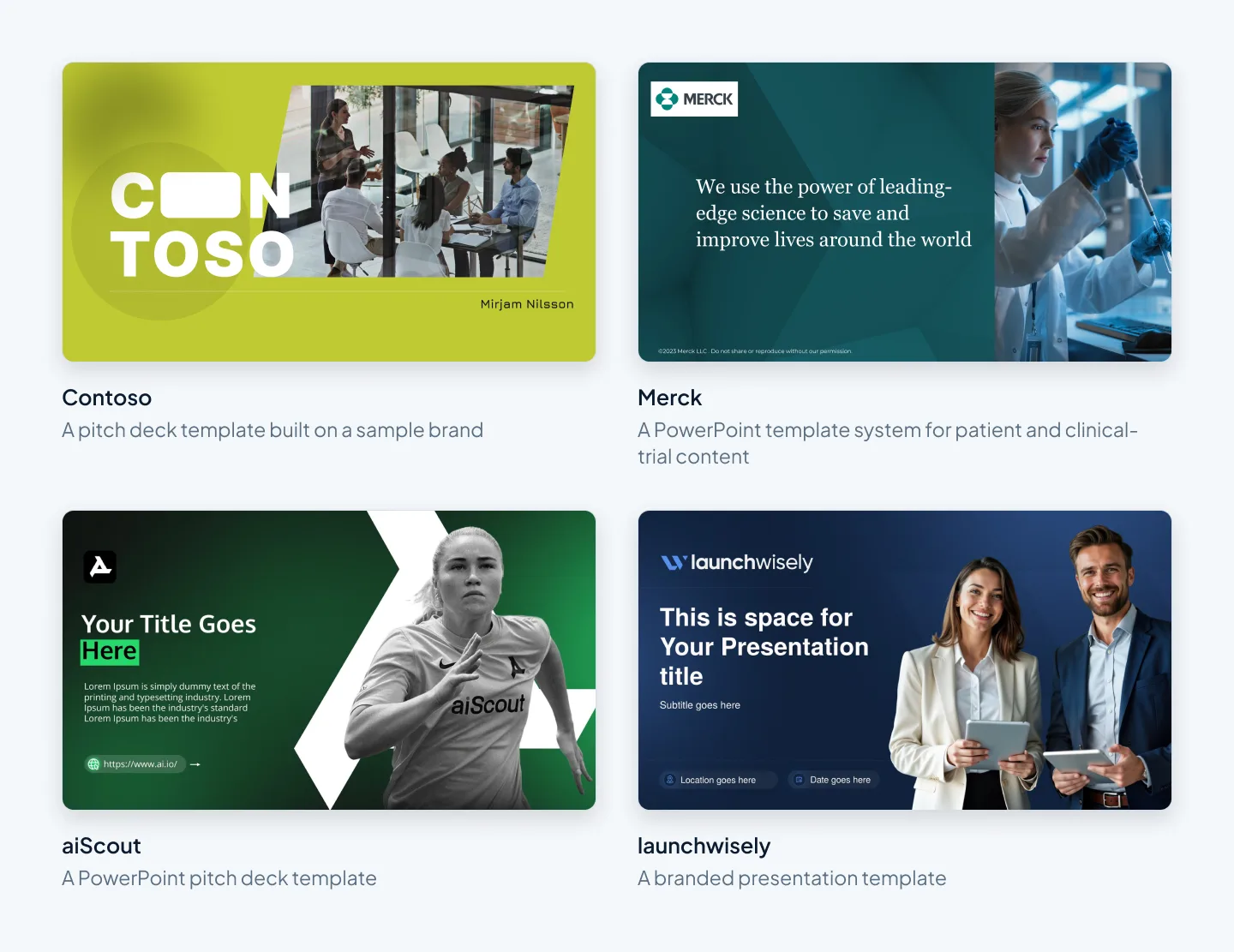
Four template projects from our work:
- Contoso pitch deck template: a pitch deck template built on a sample brand. It's a studio template, with no client behind it.
- Merck template system: a PowerPoint template system for patient and clinical-trial content, with calm editorial type and layouts built on placeholders.
- aiScout pitch deck template: a PowerPoint pitch deck template, made so every future deck stays on brand.
- launchwisely branded template: a branded presentation template.