The tool question usually arrives at a bad moment: the night before a pitch, when a deck built in one app has to open in another. Fonts swap, headlines spill out of their boxes and the animation you spent an afternoon on is gone.
This guide compares Google Slides, PowerPoint and Keynote for business use, from a designer's side of the screen. It covers when each one is right, how to convert without wrecking the layout and what to ask for when you hire help. The design rules in our guide to making a PowerPoint look professional apply in all three.
The short answer
Choose by where the deck will be presented, edited and shared, not by where it's easiest to start.
- PowerPoint if the deck goes to clients, investors or a board, if you need a brand template, or if you want full control of layout, charts and motion.
- Google Slides if several people edit the deck at once, your company lives in Google Workspace and the content changes every week.
- Keynote if one person presents image-led talks from their own Mac and nobody else needs to edit the file.
The riskiest setup is a mix: a deck designed in one tool, edited in a second and presented from a third.
Every handover between tools is a conversion, and every conversion changes something.
Side by side
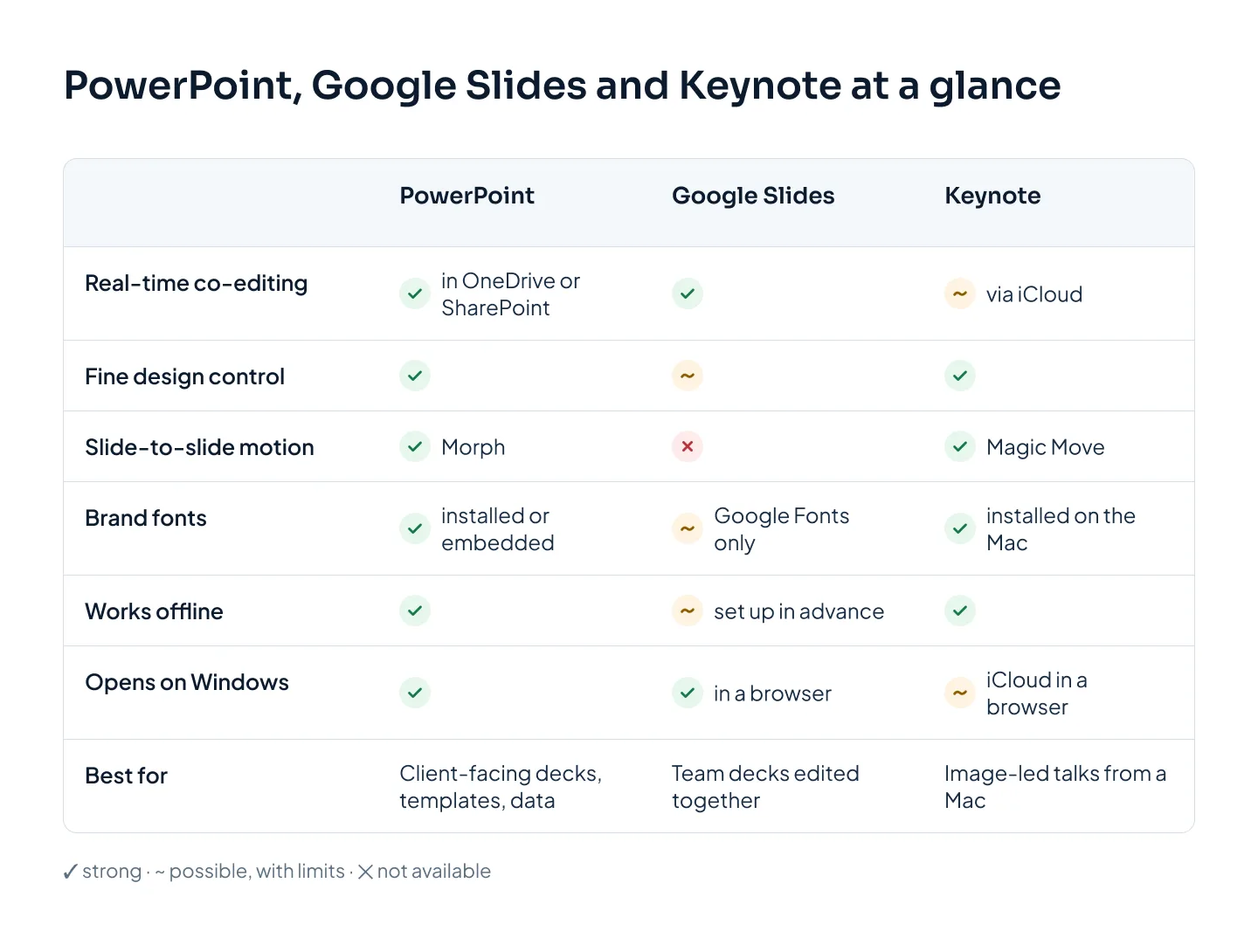
Here's how the three compare on the points that matter for business decks.
| PowerPoint | Google Slides | Keynote | |
|---|---|---|---|
| Collaboration | Co-editing when the file is in OneDrive or SharePoint; comments | Real-time editing in the browser; comments; version history | Collaboration through iCloud; easiest when everyone uses Apple devices |
| Design control | The most: Slide Master, layouts, placeholders, theme fonts and colors | Themes and master layouts; fewer fine controls | Strong control of type and images |
| Animation | Full animation set, plus Morph | Basic animations and transitions; no Morph equivalent | Rich builds and Magic Move |
| Fonts | Any installed font; other computers need it installed or embedded | Google Fonts, so it looks the same for everyone | Must be installed on the presenting Mac |
| Offline use | Full desktop app | Possible if offline access is set up in advance | Full app on Mac, iPad and iPhone |
| Devices | Windows, Mac, web and mobile | Any browser; mobile apps | Mac, iPad, iPhone; iCloud in a browser |
| File sharing | A .pptx file, or a cloud link | A link with view, comment or edit access | A .key file; export to PowerPoint or PDF for others |
| Best for | Client-facing decks, templates, data | Team decks edited together | Image-led talks from a Mac |
When PowerPoint is the right choice
PowerPoint is the safest choice when a deck has to work for people outside your team. Pick it when:
- The file leaves your company. A .pptx opens in PowerPoint, Google Slides and Keynote, so it's the most portable file you can send to a client, an investor or a board.
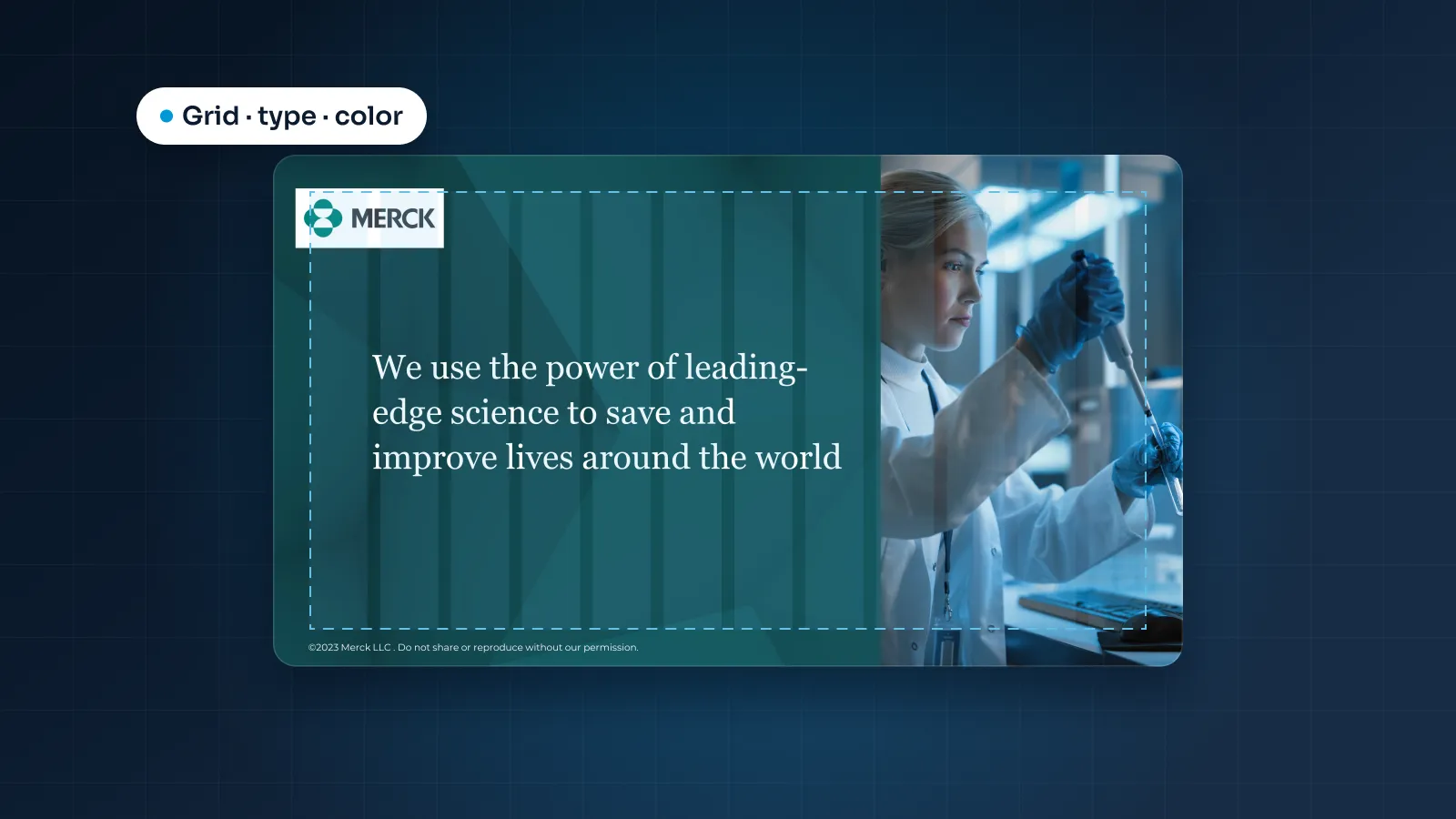
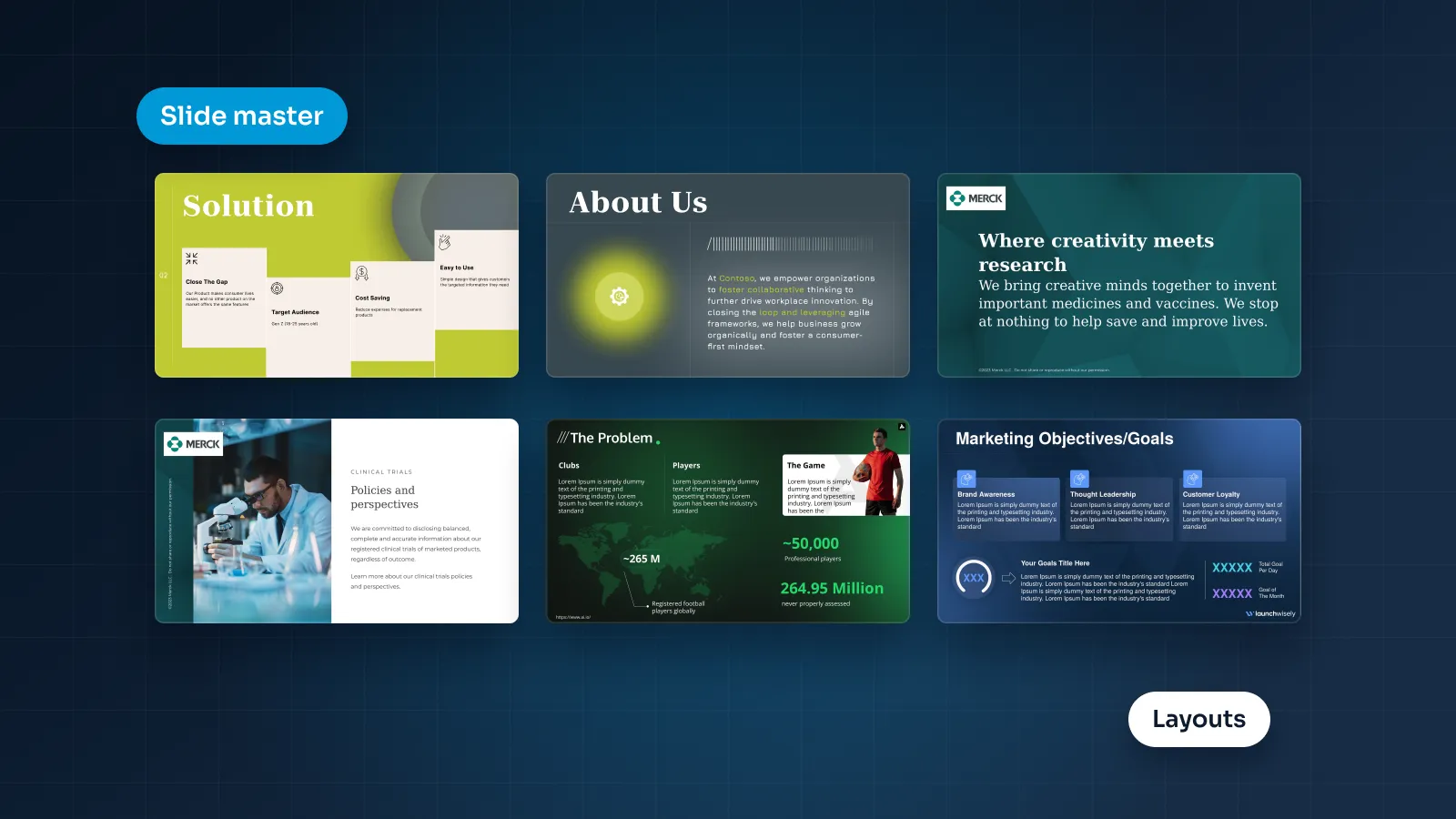
- You need a brand template. The Slide Master, layouts, placeholders and theme fonts and colors control every new slide your team adds. That's how a custom PowerPoint template keeps a whole company on brand. Our Merck template system, built for patient and clinical-trial content with layouts on placeholders, is one example.
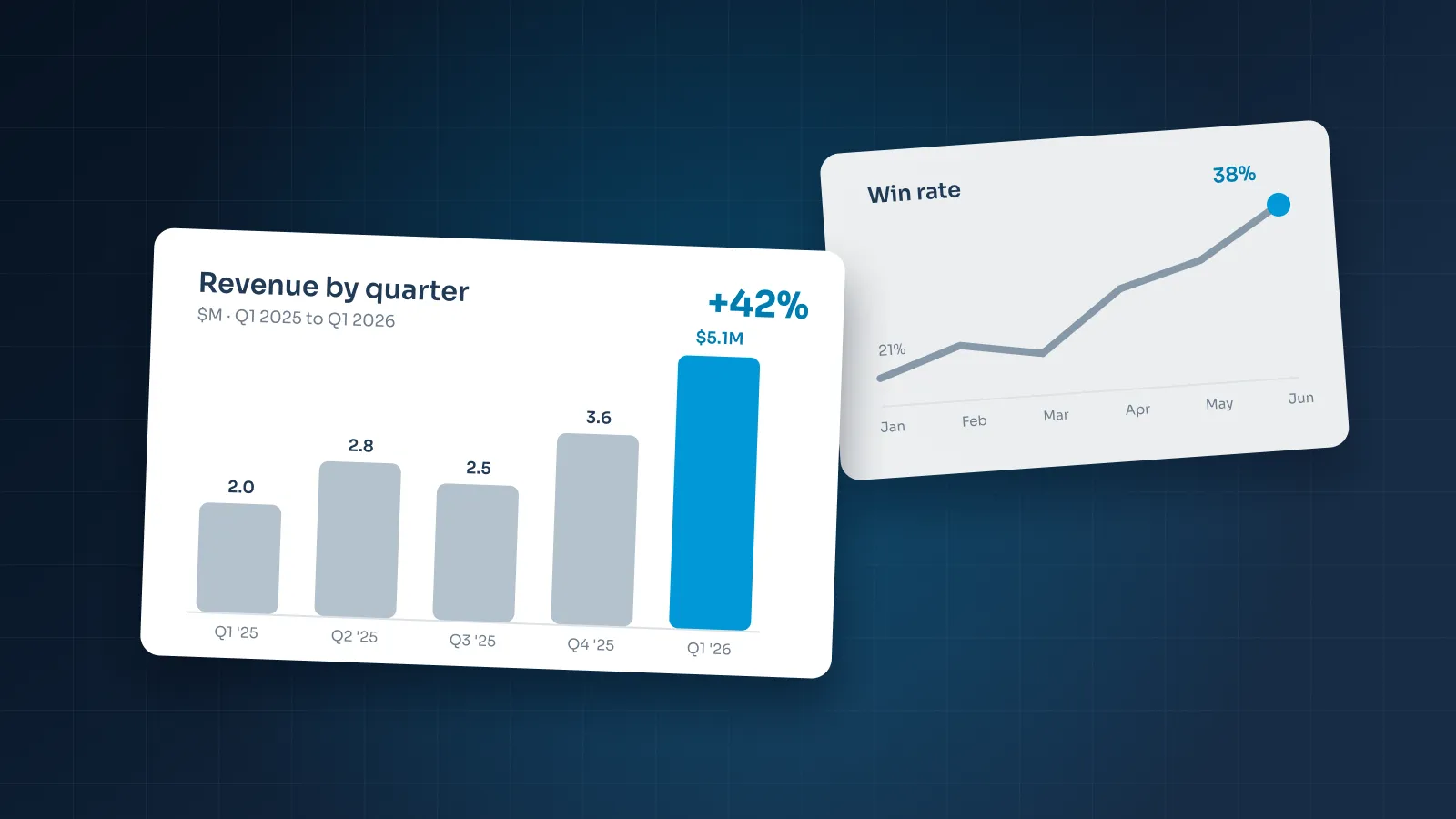
- The deck runs on data. Native charts are linked to an embedded Excel sheet, so you update the numbers and the chart redraws itself. Our guide to presenting data in PowerPoint covers how to choose and style them.
- You want real motion. PowerPoint has the fullest set of animations and transitions, plus Morph in PowerPoint 2019 or later and Microsoft 365. Our guide to PowerPoint animation and Morph explains when that motion helps.
- You present with notes. Presenter View shows your notes and the next slide on your screen, while the audience sees only the current slide.
It also has AI help built in. Designer suggests layouts, and Copilot in PowerPoint can draft slides from a prompt or document for Microsoft 365 customers.
The trade-offs: fonts must be installed on every computer that opens the deck, or embedded in the file where the font license and your version allow, and older versions lack newer features such as Morph. Real-time co-editing needs the file saved in the cloud, such as OneDrive or SharePoint, rather than attached to an email.
When Google Slides is the right choice
Google Slides is built for teams that work on the same deck at the same time. Pick it when:
- Many hands touch the deck. A sales team updating one shared pitch, a weekly leadership update, a project deck that five departments add to. Real-time editing, comments and version history replace the chain of "final_v7" attachments.
- Your company runs on Google Workspace. Sharing works like any other Google file: a link with view, comment or edit access, and no file to email.
- Consistency matters more than typography. Google Slides uses Google Fonts, so the deck looks the same for everyone who opens it, on any computer.
- People open it from anywhere. Any device with a browser can open the deck, and there are mobile apps for phones and tablets.
Gemini features in Google Workspace can also help generate content and images.
The trade-offs: animation and transitions are limited, with no Morph equivalent. Fonts are limited to Google Fonts, so a brand font that isn't one needs a close Google Font match. You get fewer fine design controls than in PowerPoint, and offline use has to be set up in advance.
When Keynote is the right choice
Keynote is Apple's presentation app for Mac, iPad and iPhone, also available through iCloud in a browser. It's at its best on stage. Pick it when:
- The talk is image-led. Full-bleed photography, few words, cinematic pacing. Keynote is strong for exactly this kind of talk.
- You want smooth slide-to-slide motion. Magic Move animates objects between two slides, the same idea as PowerPoint's Morph.
- The speaker presents from their own Mac. Keynote relies on fonts installed on the presenting Mac, so presenting from your own machine removes the biggest risk. For stage talks, our guide to conference presentation slides covers the handover to the AV team.
- Only one person edits the file. A founder's keynote or a speaker's talk, where nobody else needs to change the slides.
The trade-offs: there is no Keynote app for Windows, so colleagues and clients on Windows need a PowerPoint or PDF export, and some effects change on export. If the venue supplies a Windows computer, you'll present a PowerPoint export or bring your own Mac.
Converting without losing formatting
Each tool has features the others don't, so every conversion changes something. The goal is to know what will change, prevent what you can and check the rest.
The routes themselves are simple. In Google Slides, use File > Download > Microsoft PowerPoint (.pptx). To bring a PowerPoint deck into Google Slides, upload it to Google Drive and open it with Google Slides. In Keynote, use File > Export To > PowerPoint. What breaks, and how to prevent it:
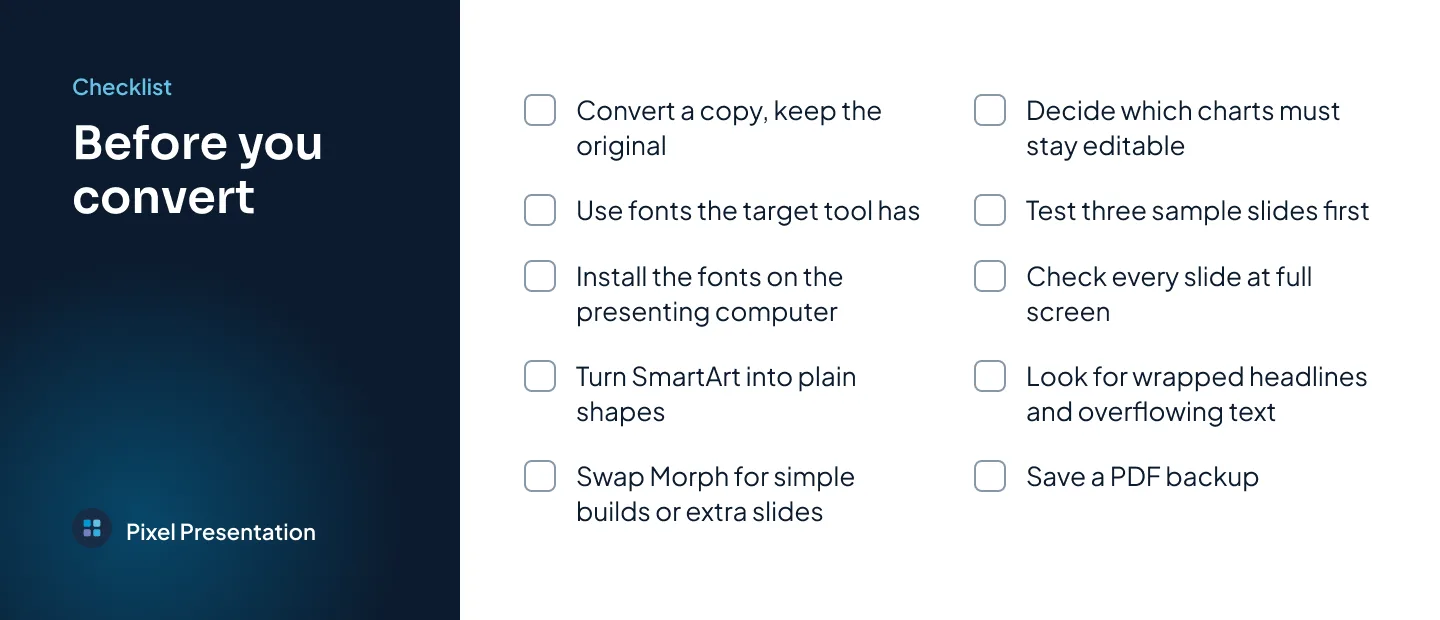
- Fonts get swapped. A font the target tool or computer doesn't have is replaced, which changes line breaks and pushes text out of its boxes. Prevent it: if the deck will live in Google Slides, design in Google Fonts from the start. For PowerPoint and Keynote, install the fonts on every computer that will present. That includes any Google Fonts from a deck that started in Google Slides.
- Animation changes or disappears. Google Slides has no Morph equivalent, some PowerPoint animations change on import, and some Keynote effects change on export. Prevent it: keep advanced motion in decks that stay in one tool. On slides that must convert, use simple builds or split the motion across separate slides.
- SmartArt changes. SmartArt diagrams can change when a deck moves to Google Slides. Prevent it: in PowerPoint, use Convert to Shapes on each SmartArt diagram before you export, so it travels as plain shapes.
- Charts lose formatting. Some chart formatting changes on conversion, so labels, colors or axes can shift. Prevent it: rebuild the key charts natively in the target tool, linked to Excel in PowerPoint or to Google Sheets in Google Slides, or check every chart by hand.
- The original gets overwritten. If something breaks, you want the source intact. Prevent it: always convert a copy and keep the original as the master. Try a three-slide sample first (a text slide, a chart and an animated slide) to see what will change before you convert the lot.
- Nobody checks the result. Prevent it: open the converted file and go through every slide at full screen. Look for headlines that wrap, text outside its boxes, bad image crops, unreadable charts and missing speaker notes. Then export a PDF as a backup for sending or presenting.
What to ask your designer for
Whoever builds your deck, a few questions up front save a painful conversion later. Put the answers in your presentation design brief so nothing gets lost.
- A native build in your tool. Ask for the deck to be built in the tool you'll present in, with live text, shapes and charts. Not a conversion from another app, and not slides flattened into images nobody can edit.
- Fonts that work where you present. Ask which fonts the design uses and whether your team has them. For Google Slides that means Google Fonts; for Keynote and PowerPoint, the font files should come with the deck or already be installed.
- Your version. Tell the designer which PowerPoint version your team uses. If anyone is on a version older than PowerPoint 2019, features such as Morph should be left out.
- Master layouts. New slides your team adds should match the design without manual fixing.
- Editable charts. Charts built with the tool's own chart feature, so the numbers can be updated later.
- A PDF alongside. A PDF is the safest version to email and the backup if the presenting computer misbehaves.
- A checked second format, if you need one. If the deck must exist in two tools, ask the designer to check and fix the converted file rather than hand you a raw export.
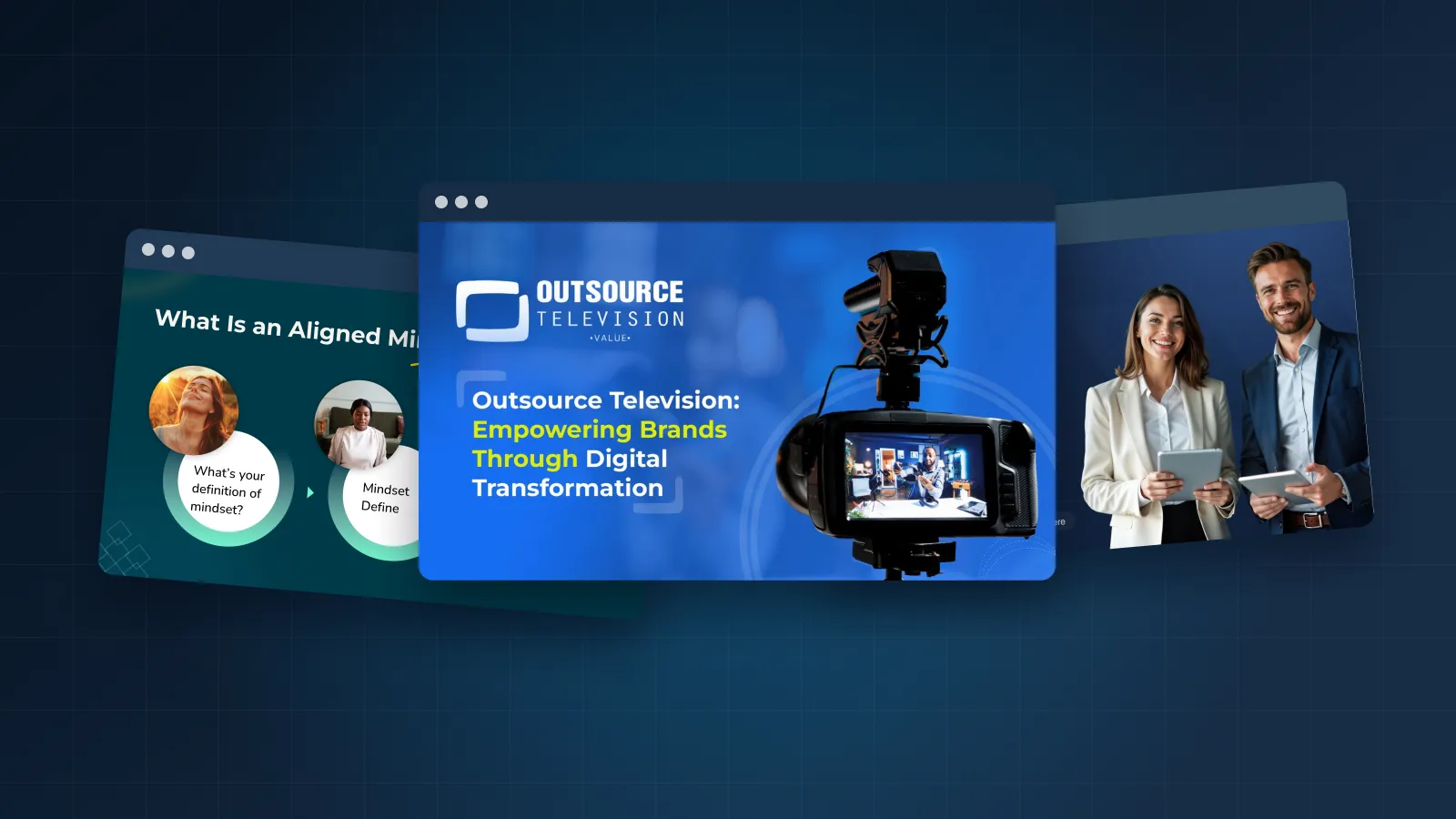
At Pixel Presentation, we build natively in PowerPoint, Google Slides and Keynote, and every deck comes as editable source files plus a PDF. Google Slides decks are shared to your Google account or shared drive. Keynote decks arrive as .key files, and we can use your brand fonts and send them with the files. If you need a PowerPoint version of a Google Slides or Keynote deck, we check the converted file and fix what breaks. Our Google Slides and Keynote design service usually takes 3–6 working days.