Most people have sat through the bad version of PowerPoint animation: bullets spinning in one at a time, a chart that bounces, a transition that takes longer than the point it carries. So plenty of teams switch motion off for good. That throws away one of the most useful tools in the program.
Used well, motion does work a still slide can't. This guide covers when it helps, when to skip it, how Morph works step by step and how to make sure it plays smoothly on the day. If your slides need fixing before they need moving, start with how to make a PowerPoint look professional.
When motion helps understanding
Good motion answers a question the audience would otherwise have to work out alone. Before you add any effect, ask what the movement explains. In business decks, the answer is almost always one of four jobs.
Build a sequence
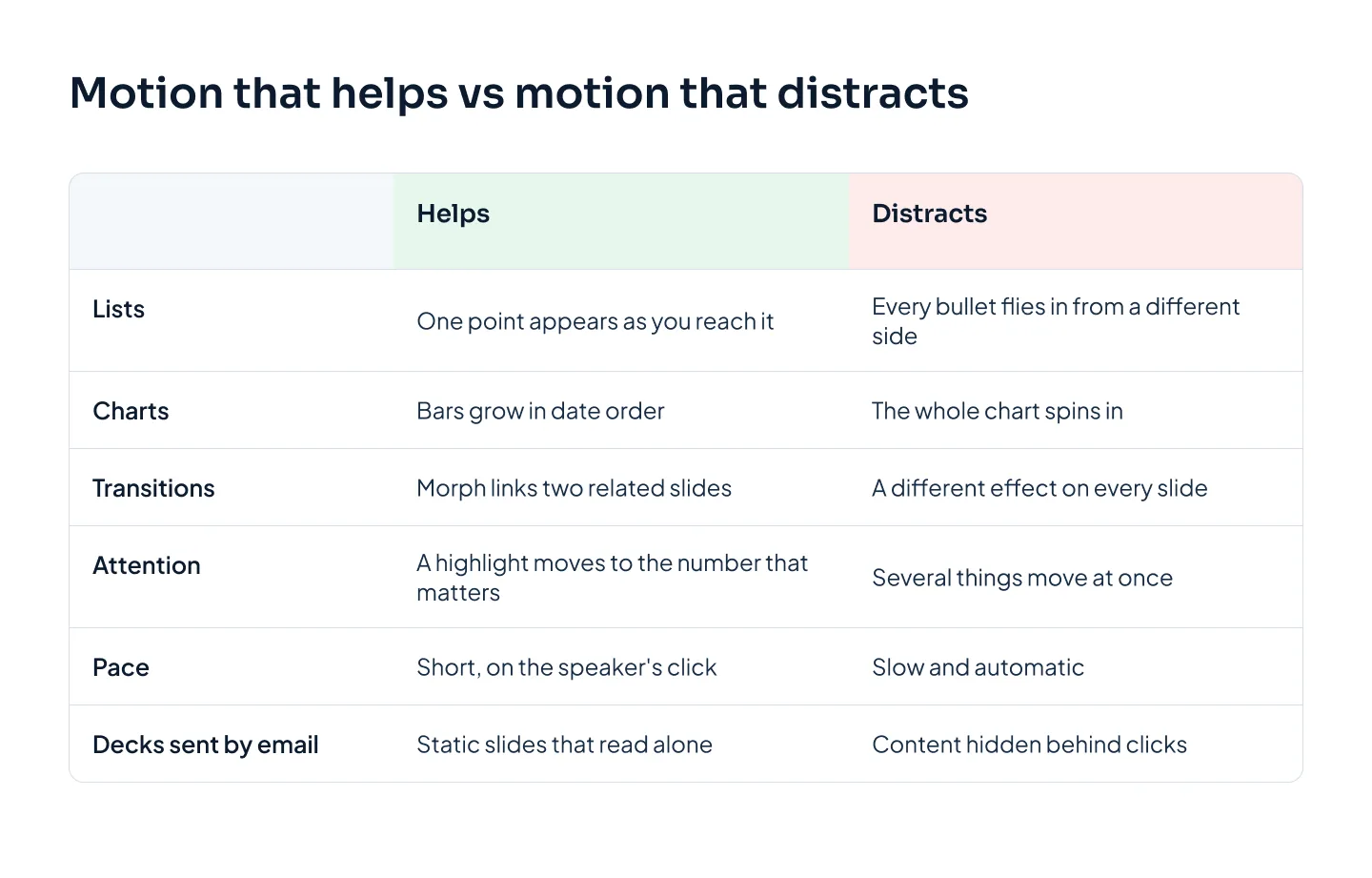
A process, a timeline or an argument in steps. Show all five steps at once and people read ahead, then stop listening. Reveal each step as you reach it, and dim the earlier steps rather than removing them, so the audience keeps its place.
Example: Juniper Freight's onboarding slide has five steps, from quote to first delivery. Each step appears on click with its arrow. In the effect's options, the After animation setting dims each step to gray once the speaker moves on.
Show change over time
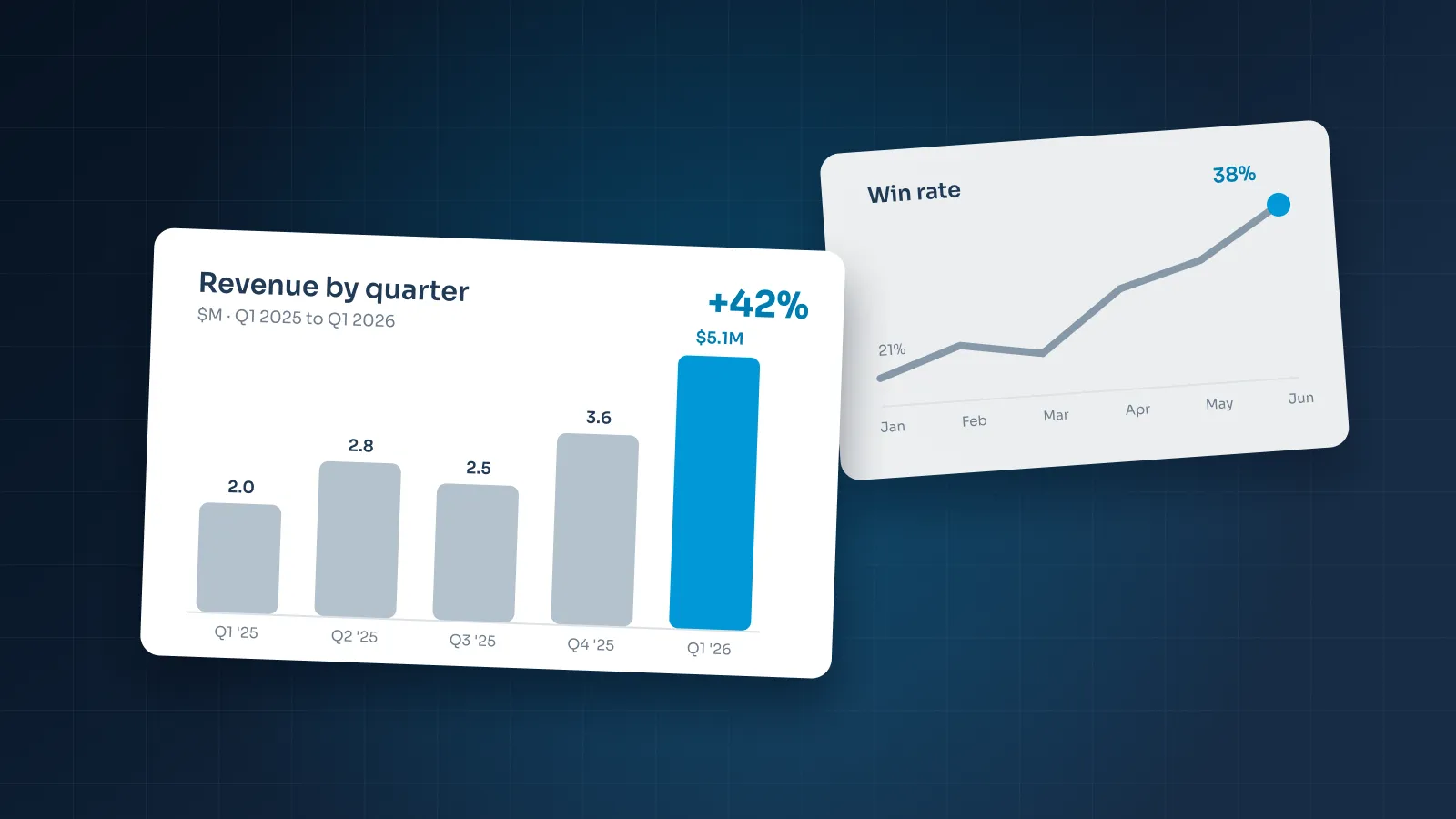
Growth, decline, a market shift, a process before and after. Motion makes the change itself visible, instead of asking people to compare two numbers in their heads.
A bar chart whose bars grow in date order tells the story of a year. In PowerPoint, select the chart, add a Wipe or Fade entrance and set Effect Options to By Category, so the bars arrive one group at a time. Our guide to presenting data in PowerPoint covers choosing the chart in the first place.
Move attention
Dense slides need a guide: a table, a map, a product screenshot. A highlight box that slides to the row you're discussing, or a zoom into one region of a map, tells people where to look without a laser pointer.
Example: Northlake Analytics shows a pricing table with three plans. A colored frame moves from the Basic column to the Team column as the speaker explains the upgrade path.
Connect two states
The same object in two places: an agenda tile that becomes a section header, a product photo that moves from an overview grid to a full-slide close-up, an org chart where one team expands. The movement tells the audience that the two slides are related. This is the job Morph does best.
When to skip it
Motion has a cost. Every effect adds time, a click to remember and one more thing that can go wrong on the presenting computer. Skip it in these cases.
- Decoration. A spinning logo or a bouncing title explains nothing. If the slide works just as well without the effect, it's decoration.
- Decks that are read, not presented. Investor follow-ups, pre-reads and proposals sent by email are often opened as PDFs or on a phone. Animation doesn't play in a PDF, and objects meant to replace each other end up stacked on top of each other. Send a static version, or build those steps as separate slides.
- Every bullet flying in. When everything moves, nothing stands out, and the audience learns to ignore motion entirely. It also slows the speaker, who has to click through six lines to reach the point.
- Decks many people will edit. Complex animation is fragile. A colleague who moves one shape can break a sequence they didn't know was there.
If you can't say what an animation explains, it's decoration.
Morph: what it is and how designers use it
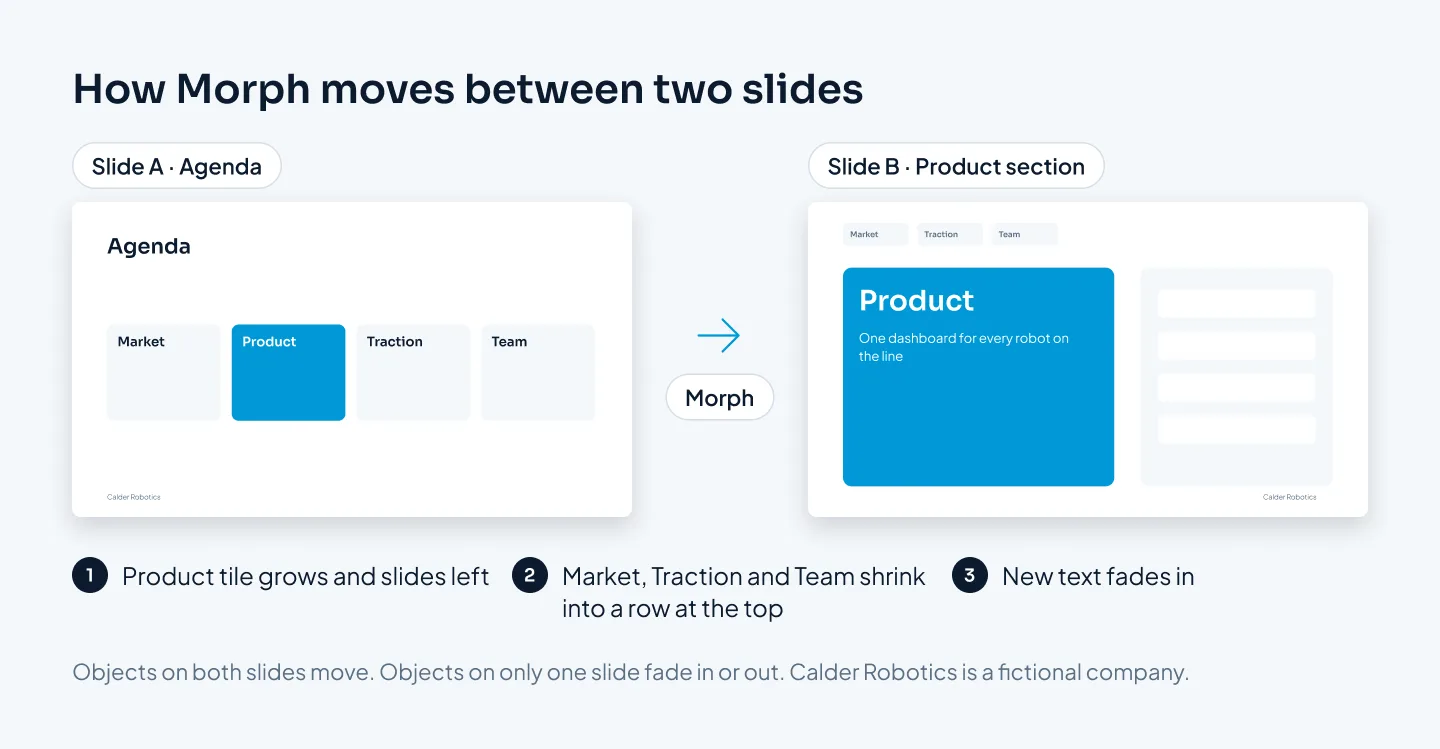
Morph is a slide transition, not an object animation. You apply it to the second of two slides. PowerPoint compares the two, finds the objects they share and animates the differences: position, size, rotation and color. Objects that appear only on the second slide fade in, and objects only on the first fade out.
That changes how you work. With object animations, you build a timeline of effects in the Animation Pane. With Morph, you design two finished slides and PowerPoint fills in the movement between them. Each state is a real slide, so the deck still makes sense as a PDF, and changing the motion means editing a slide rather than untangling a timeline.
Common uses
- Agenda to section. An agenda tile grows into the section header, then shrinks back when you return to the agenda.
- Zoom into detail. A map, screenshot or photo scales up on the second slide, so one area fills the screen.
- Panning a timeline. A long timeline runs off the edge of the slide and slides sideways, one period per slide.
- Reordering. Cards rearrange to show a new ranking or a regrouped plan.
- Rewriting a headline. With the Words or Characters option, text moves and rearranges into a new phrase.
- Turning a product. A 3D model can rotate between slides, so a product is seen from several angles without a video.
How to set up a Morph transition
- Design the first slide completely. This is Slide A, the starting state. Finish it as if it were a still slide.
- Duplicate it. Right-click the thumbnail and choose Duplicate Slide. The copy is Slide B. Duplicating is the most reliable way to make sure PowerPoint can match the objects.
- Change Slide B to the end state. Move, resize, rotate or recolor objects. Add anything new, and delete anything that should leave.
- Apply Morph to Slide B. Select Slide B, open the Transitions tab and choose Morph.
- Pick the effect option. Objects is the default. Words and Characters let text move as well as shapes.
- Set the duration. Start short, around a second, and lengthen it only for big movements. A slow Morph feels like waiting.
- Play it in Slide Show. Start from Slide A, not Slide B, and watch for anything that fades when it should move.
- Fix mismatched objects with names. Open the Selection Pane (under Arrange or Select on the Home tab). Give the object the same name on both slides, starting with two exclamation marks, such as "!!ProductTile". Morph then treats the two as one object.
Examples from our work
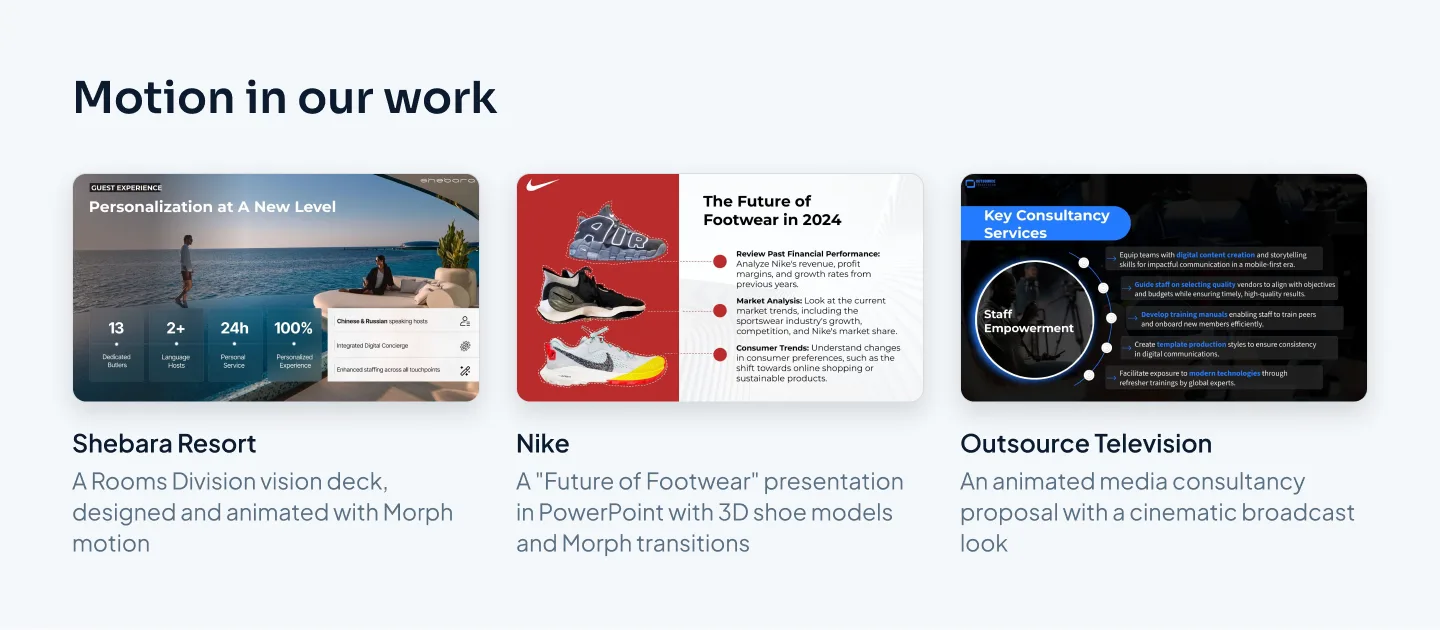
Three decks from our case studies show Morph in client work.
Shebara Resort. A Rooms Division vision deck for a luxury resort, designed and animated, with resort photography and Morph motion. Photo-led decks are a natural fit for Morph, because a picture can move and resize between slides without a hard cut.
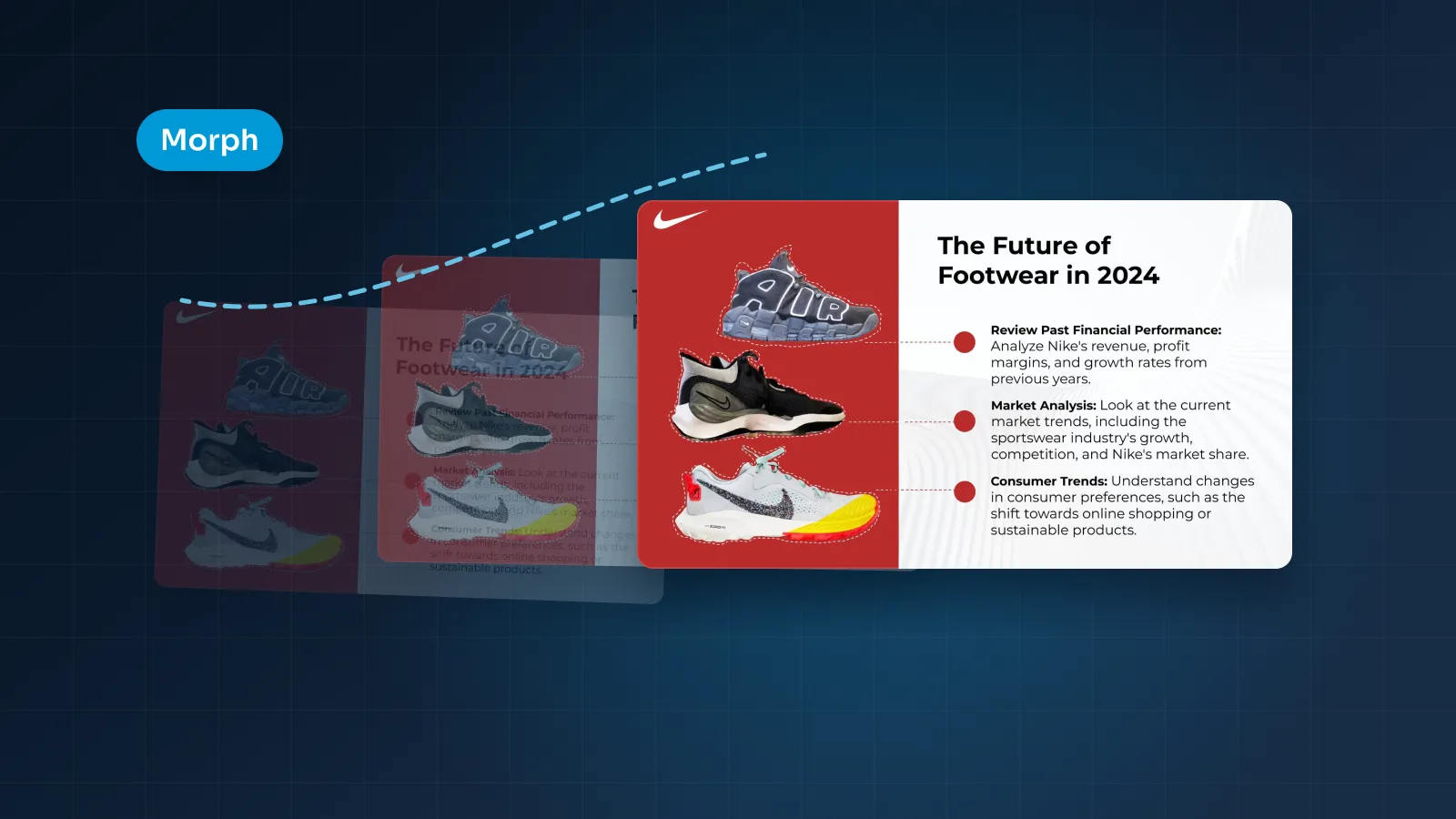
Nike. A "Future of Footwear" presentation in PowerPoint with 3D shoe models and Morph transitions. Pairing 3D models with Morph lets a product turn and move inside PowerPoint itself, with no separate video file to manage.
Outsource Television. An animated media consultancy proposal with a cinematic broadcast look and Morph motion. When the subject is television, motion that feels like broadcast graphics suits the topic in a way static slides can't.
Keeping it smooth on any screen
Motion that runs perfectly on the designer's laptop can stutter, vanish or misfire on the computer at the venue. Check these before the day.
- The PowerPoint version. Morph needs PowerPoint 2019 or later, or Microsoft 365, on Windows or Mac. On older versions it won't play as designed. Ask what the presenting computer runs before you build around Morph. If a team is on an older version, we avoid features it doesn't support.
- Built-in effects only. Our animation uses PowerPoint's own animation and transitions, so it runs without add-ins. Add-ins have to be installed on whatever computer presents the deck, and you can't count on a venue machine having them.
- Fonts. If the presenting computer lacks your font, PowerPoint substitutes another. Text reflows, and Morph's carefully matched positions land in the wrong place. Install the fonts, embed them where the font license and your version allow, or present from your own machine.
- File size. Full-resolution photos and embedded video make a deck slow to open and slow to advance. Crop images before you insert them, and use Compress Pictures on the Picture Format tab for the rest.
- Video calls. Screen sharing can make fast motion look less smooth to viewers than it does on your screen. Keep transitions short and do a test call first.
- A video when you can't control the machine. PowerPoint can export the deck as an MP4 video from File > Export, and it plays the same on any screen. The trade-off is that a video runs on timings, so you lose control of the clicks. Use it for kiosks, social clips and decks that play unattended. We can also export an animated deck as an MP4 video for you.
Then test on the presenting machine itself. Run every animated slide at full screen on the actual computer, projector and clicker you'll use. For stage talks, our guide to conference presentation slides covers what to hand the AV team.
Animation in Google Slides and Keynote
Google Slides has a short list of object animations and slide transitions, such as fades and fly-ins, and no Morph equivalent. That suits shared team decks, where simple motion is safer anyway. If you import a PowerPoint deck that relies on Morph, the transition won't carry over as designed. Plan to rebuild those moments as simple builds or separate slides.
Keynote has Magic Move, which works on the same idea as Morph: duplicate a slide, change the objects, apply the transition and Keynote animates the difference. Keynote is strong for cinematic, image-led talks. It exports to PowerPoint and PDF, but some effects change on export, so present from the tool you designed in.
If you're still choosing a tool, our comparison of Google Slides, PowerPoint and Keynote for business covers the trade-offs beyond motion.
What animation costs
At Pixel Presentation, animation is an add-on to design: $3 a slide, and you choose which slides get motion. Design itself is $10 a slide, or $15 for complex slides such as custom infographics and multi-series charts.
A worked example: a 20-slide sales deck with motion on six slides, say the agenda, two process slides, two charts and the closing slide. That's $200 for design plus $18 for animation, $218 in total. Express and Rush delivery add to the design fee only; animation isn't marked up.
You rarely need motion on every slide. Start with the slides where something builds, changes or connects, and leave the rest still. Our PowerPoint animation service explains what's included, and the pricing estimator shows the price for your own deck before you order.