
Converting a PowerPoint deck to Google Slides takes about a minute. Making the result look right can take an afternoon. Headlines wrap onto a third line, a chart that used to update from Excel is now a picture, and the build you rehearsed plays in a different order.
None of that is random. PowerPoint and Google Slides support different features, so the same things change in almost every conversion. Once you know what they are, you can prepare the file, fix what you can and decide quickly when a slide is better rebuilt. For the wider question of which tool to use in the first place, see our comparison of Google Slides, PowerPoint and Keynote.
The examples in this guide use Northlake Analytics, a fictional B2B analytics company moving its sales deck into Google Slides so the whole team can edit it.
Three ways to open a PowerPoint in Google Slides
Upload it to Google Drive
In Google Drive, choose New > File upload and pick the .pptx. Double-click the uploaded file and choose to open it with Google Slides.
Look at the File menu. If it shows "Office Compatibility Mode", you're editing the Office file itself, not a Google Slides deck. That suits a quick edit to a file that has to stay a PowerPoint file. For a deck your team will keep working on in Google Slides, choose File > Save as Google Slides. It makes a native copy and leaves the original .pptx in Drive.
Upload it from Google Slides
From inside Google Slides, File > Open > Upload does the same job without going through Drive first.
Import only the slides you need
To bring a few slides into a deck you already have, use File > Import slides, choose the file and select the slides. Tick "Keep original theme" if they should keep their PowerPoint look. Leave it off when they should match the deck you're importing into, which is usually what you want.
Whichever route you take, convert a copy. Keep the original .pptx untouched as your master, so that if a conversion goes wrong you can start again from a clean file.
What changes when you convert
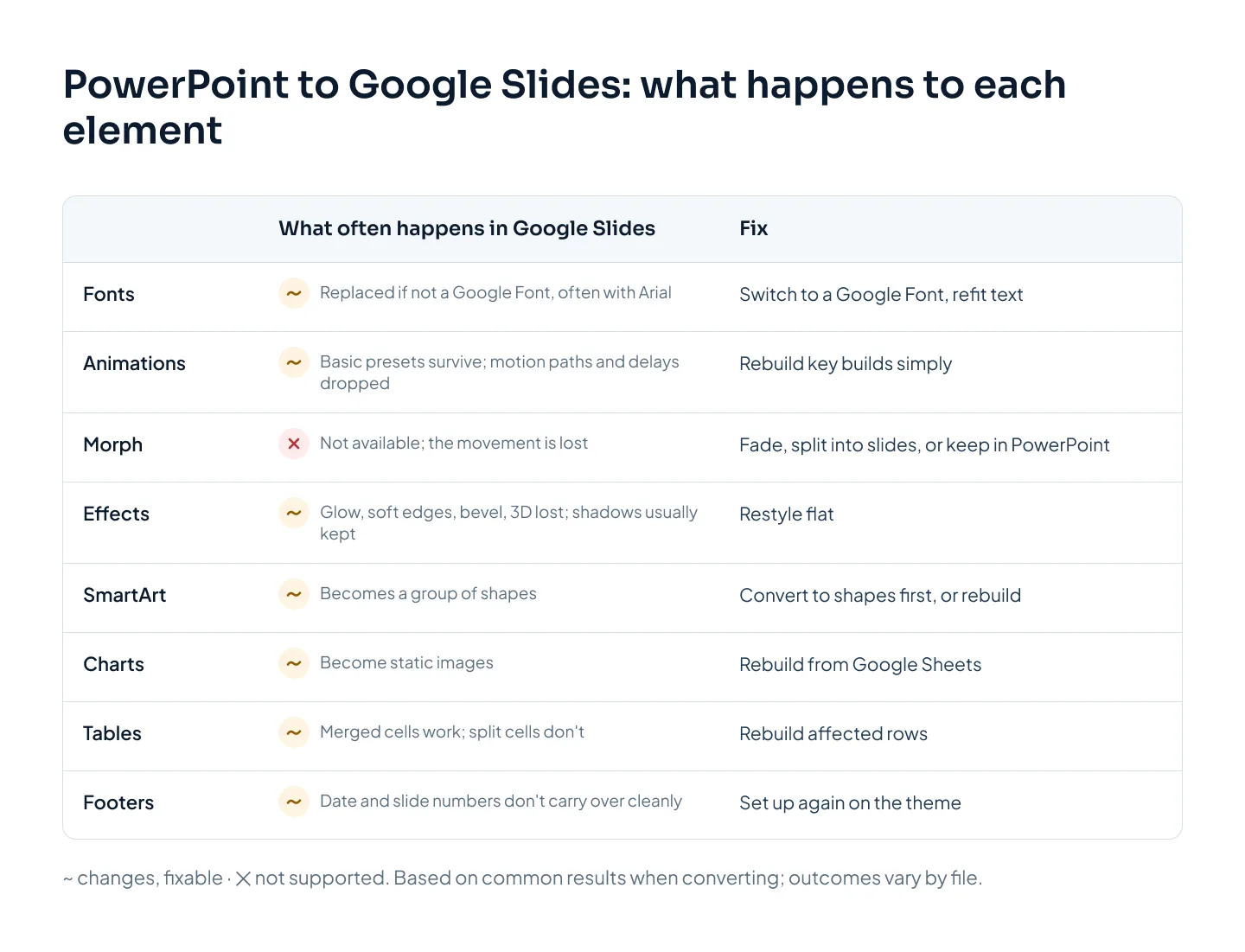
Google's own help says three things about converting PowerPoint files: macros aren't supported, embedded charts and videos are converted to images, and SmartArt is converted to drawings. The rest of this list comes from testing, so treat it as what often happens, not what always happens. Results vary with the file and the features it uses.
| Element | What often happens | How to fix it |
|---|---|---|
| Fonts | Fonts that aren't Google Fonts are replaced, often with Arial | Switch to a Google Font and refit the text |
| Animations | Basic presets and timing survive; motion paths and delays are dropped | Rebuild key builds simply |
| Transitions | Only basic transitions are supported; Morph doesn't exist | Use one simple transition, or split the motion into slides |
| Effects | Glow, soft edges, bevel and 3D rotation are lost; shadows usually survive | Restyle flat |
| SmartArt | Becomes a group of shapes that's harder to edit | Convert to shapes first, or rebuild |
| Charts | Become static images that no longer update | Rebuild from Google Sheets |
| Tables | Merged cells work; split cells aren't supported | Rebuild the affected rows |
| Footers | Date and slide number setups don't carry over cleanly | Set them up again on the theme |
| Icons and 3D models | Become flat images | Recolor before converting, or replace |
| Embedded video | Converted to an image | Add the video again in Google Slides |
| Macros | Not supported | Keep that file in PowerPoint |
| Links | Usually survive | Click through to check |
Reflections usually survive too, and pattern fills can turn solid. The grid below gives the same picture at a glance.
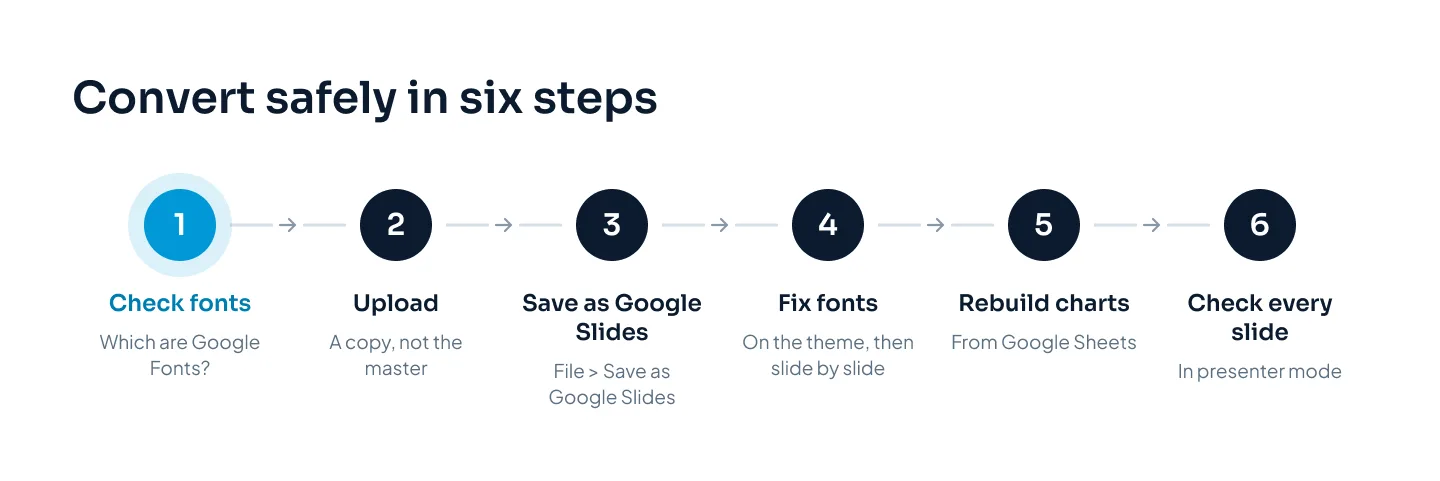
The order you fix things in matters. Fonts change the size of every text box, so fix them before you touch layouts. Charts take longest, so plan them separately. This is the sequence we'd follow:
Fonts
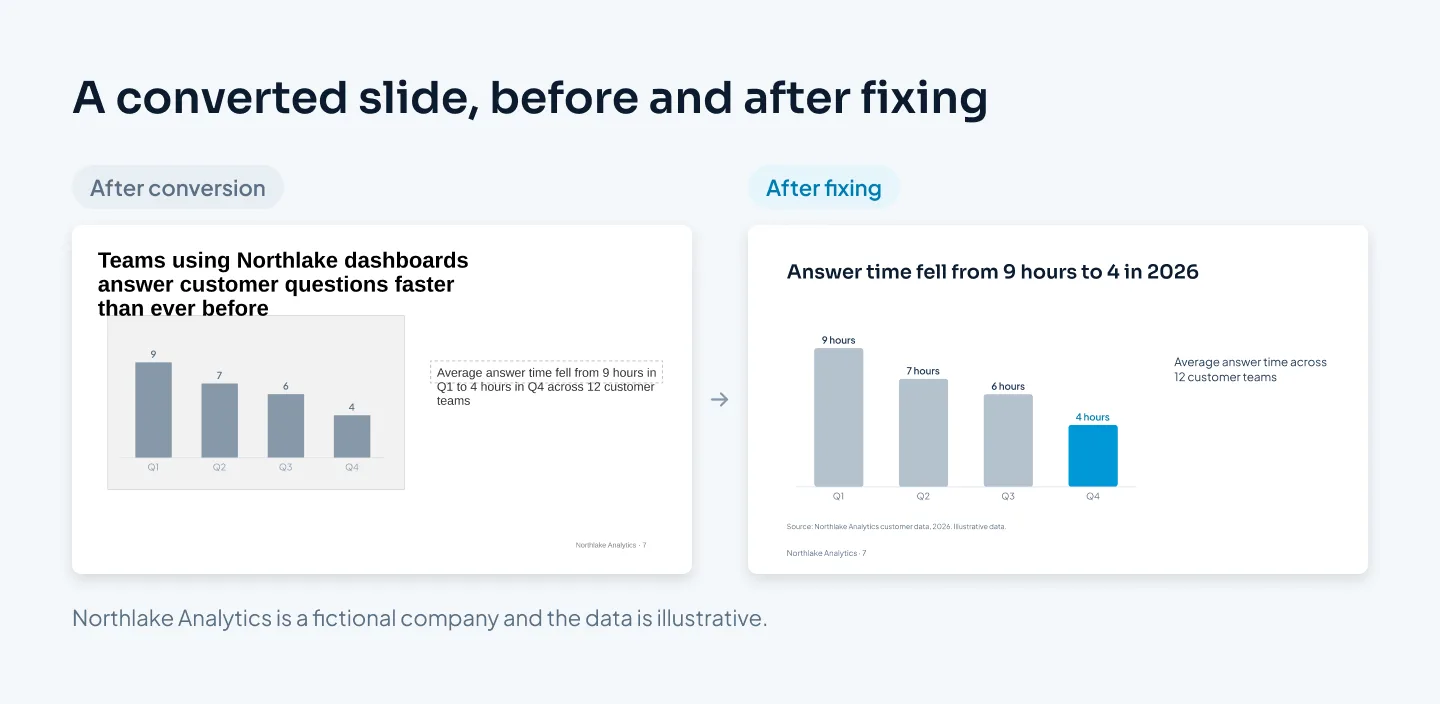
Fonts cause most of the visible damage. Google Slides uses Google Fonts, and fonts that aren't in Google Fonts are replaced when a file is converted, often with Arial. A replacement font has different letter widths, so line breaks move, titles wrap onto an extra line and text spills out of its box.
Before you convert
List the fonts the deck uses. Check the theme fonts in PowerPoint's Slide Master view, then look for any font picked by hand on individual slides.
Check each one in Google Slides. Open the font menu and look under More fonts. If a font is there, it carries over. If it isn't, it will be replaced.
Swap early if you can. If you know the deck is moving to Google Slides, change the theme fonts in PowerPoint to a Google Font first. Google Fonts are free to install, so you can see the new fit in PowerPoint before you convert.
After you convert
Open View > Theme builder and set the heading and body fonts on the theme, so every layout picks them up. Then go slide by slide: text that was set in a font picked by hand won't follow the theme and needs changing on its own.
Refit text rather than shrinking it. If a title wraps to three lines, shorten the title. If a text box overflows, move a point to the speaker notes or split the slide. Dropping body text to 12 pt to make it fit trades one problem for a worse one.
Choose a replacement close in width and feel to the original, and test it on your most crowded slide. Our guide to the best fonts for presentations lists Google Fonts that hold up on slides, with pairings that work.
Animations and transitions
Google Slides offers a short list of transitions and basic animations. On conversion, basic animation presets and their timing usually survive, but motion paths and delays are dropped. A build that used to reveal three items one after another can play differently, or all at once.
Transitions fare worse. Only basic transitions are supported, and Morph doesn't exist in Google Slides at all. A slide pair that relied on Morph to glide a chart or a product shot into place loses that movement; the slides simply change.
To fix them:
Play the deck through in presenter mode. Previewing one animation at a time won't show how a whole slide's builds run together, so presenting every slide is the reliable way to find broken builds.
Rebuild the builds that matter. Steps in a process, a chart revealed series by series. Use simple appear or fade effects, one item at a time.
Replace Morph moments. A simple fade between two carefully matched slides keeps some of the effect. Or break the movement into a short sequence of slides, each one step further.
Drop the rest. Motion that only decorated the slide isn't worth rebuilding.
If the motion is the point of the deck, keep it in PowerPoint. The Shebara Resort Rooms Division vision deck, designed and animated for a luxury resort with resort photography and Morph motion, is the kind of deck that belongs there. Our guide to PowerPoint animation and Morph covers what PowerPoint can do that Slides can't.
Charts, SmartArt and tables
Charts
In PowerPoint, native charts are linked to an embedded Excel sheet, so the numbers can be updated and the chart redraws. On conversion, embedded charts become images. They look roughly the same, but they no longer update, and you can't restyle them.
Charts in Google Slides come from Google Sheets. So the fix is to rebuild each chart there:
Copy the data before you convert. In PowerPoint, open each chart's data and paste it into a Google Sheet. Once the chart is an image, the numbers are gone.
Build the chart in Sheets. Match the chart type, then style it: no gridlines, direct labels, gray for every series except the one that proves the slide's point.
Insert it into the slide in place of the image, and keep it linked so it can be updated when the numbers change.
For a data-heavy deck, this step takes the most time. Our guide to presenting data in slides covers chart choice and styling, and every rule applies in Sheets.
SmartArt
SmartArt is converted to drawings: a group of shapes that is harder to edit than the original diagram. You get more control if you do it yourself first. In PowerPoint, select the SmartArt and use SmartArt Design > Convert > Convert to Shapes, check the result, then convert the deck. For process diagrams and timelines, rebuilding with plain shapes is often cleaner still, as our guide to PowerPoint infographics explains.
Tables, effects and icons
Tables. Merged cells work, but split cells aren't supported, so tables with complex structures can break. Simple tables with one header row convert best.
Effects. Glow, soft edges, bevel and 3D rotation are lost. A flat design with simple shadows, if any, converts with the least change.
Icons and 3D models. They become flat images. Recolor icons in PowerPoint before converting, because changing the color afterwards means replacing the image.
Footers. Date and slide number setups don't carry over cleanly. Put the footer text on the theme in the Theme builder, so it sits in the same place on every slide.
Going back to PowerPoint
To turn a Google Slides deck into a PowerPoint file, choose File > Download > Microsoft PowerPoint (.pptx). The download is quick, and a simple deck usually comes through in good shape.
The catch is a deck that started in PowerPoint. Whatever was lost on the way into Google Slides doesn't come back on the way out. Charts that became images stay images. Dropped animations stay dropped. And the Google Fonts you switched to need installing on any computer that opens the PowerPoint file, or PowerPoint substitutes them in turn.
That's the round-trip problem. Each conversion adds its own damage, and a deck that goes back and forth a few times ends up with substitute fonts, flattened charts and layouts that no longer match either tool's theme.
Every conversion changes something. Converting twice changes it twice.
Designers' advice is simple: choose one platform at the start and build natively in it. If you need the deck in both tools, design it in the one you'll present from, keep that file as the master, convert once at the end and check the converted copy slide by slide. Don't let two teams edit two versions in parallel.
If your brand template lives in PowerPoint but some teams work in Google Slides, build a Google Slides version of the theme once, in the Theme builder, rather than converting every deck. Our guides to making Google Slides look professional and to custom PowerPoint templates cover the setup on each side.
Convert, fix or rebuild?
Not every deck deserves an afternoon of cleanup. Decide by what the deck contains and how long it will live.
Convert and check when the deck is mostly text and images, uses fonts that are in Google Fonts and has little animation. A quick pass through every slide in presenter mode is enough.
Convert and fix when a few things break: a handful of charts, a couple of builds, fonts that need swapping. Follow the six steps above. This suits most decks that will be used for a few meetings.
Rebuild natively when the deck will live in Google Slides for months, gets edited by a team, carries a lot of charts or needs to become a template. A converted deck carries PowerPoint's structure into a tool that wasn't built for it. A native rebuild starts with a proper theme, Google Fonts, layouts for each slide type and charts linked to Sheets, so it stays tidy as people edit it.
Keep it in PowerPoint when the deck depends on Morph or complex animation, uses macros, or is presented by one person who has PowerPoint. Share a PDF with anyone who only needs to read it.
Take the Northlake Analytics sales deck: 20 slides that the sales team will edit every week, four of them multi-series charts. That's a rebuild. At Pixel Presentation, it would be 16 slides at $10 and four complex slides at $15, so $220 in total.
Our Google Slides and Keynote design service builds decks natively and takes 3–6 working days once we have your content and brief. If the deck also needs a fresh look, our presentation redesign service takes 3–6 working days too. Design is $10 a slide, $15 for complex slides, and the pricing estimator shows your exact price before you order.