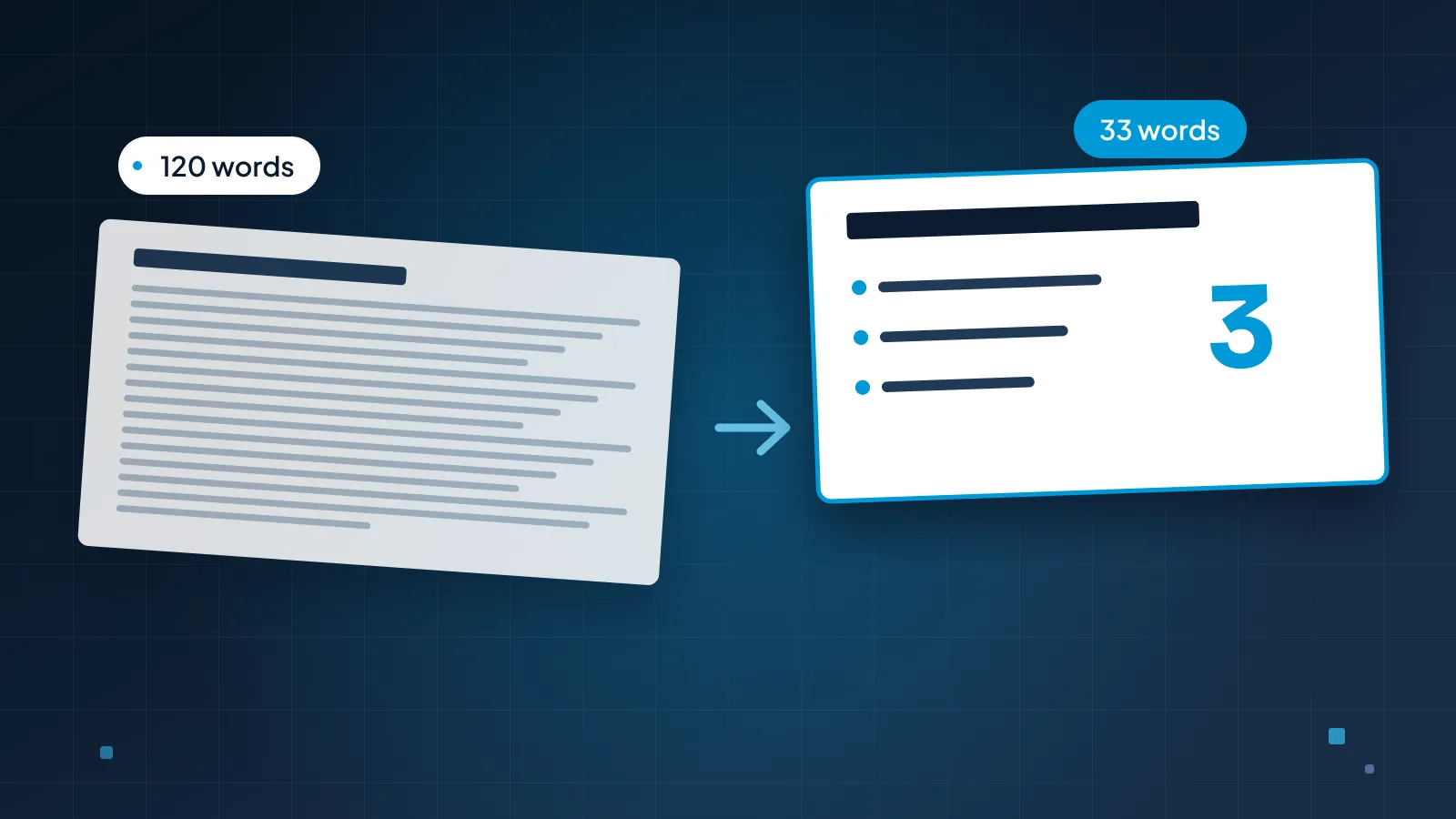
Most speaker notes fail in one of two ways. Either they're empty, so the presenter reads the slides aloud, or they're a full page of script, so the presenter reads the notes aloud. Both end the same way: you looking down, the audience looking at you looking down.
Good notes sit between the two. This guide covers what speaker notes are for, what to put in them, when a script helps, how to use notes in PowerPoint and Google Slides, how to rehearse with them, and how to write notes for someone else to present.
What speaker notes are for
Speaker notes do two jobs. They keep words off your slides, and they keep you on track while you talk.
The first job matters more than it sounds. One idea per slide, the first rule in our guide to making a PowerPoint look professional, only works if everything else has somewhere to go. The background, the explanation, the story behind the number: you'll say all of it, and the notes are where it lives. Our guide to cutting text on slides shows how to move it there.
The second job is the one people get wrong. Notes are a prompt, not a teleprompter. In the middle of a talk you have about a second to glance down, find your place and look back up. Notes that work in one glance help. Notes you have to read pull you out of the room.
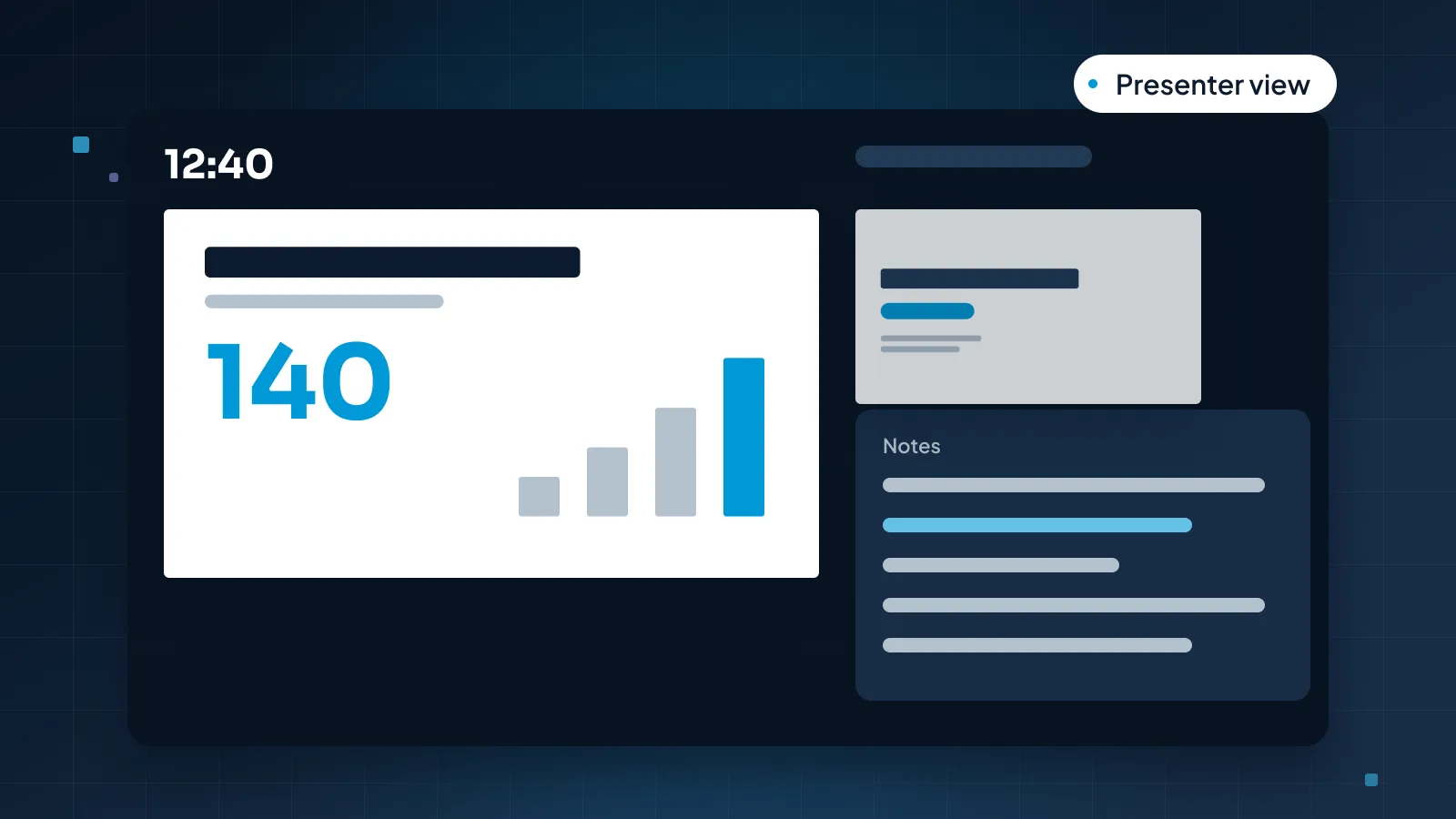
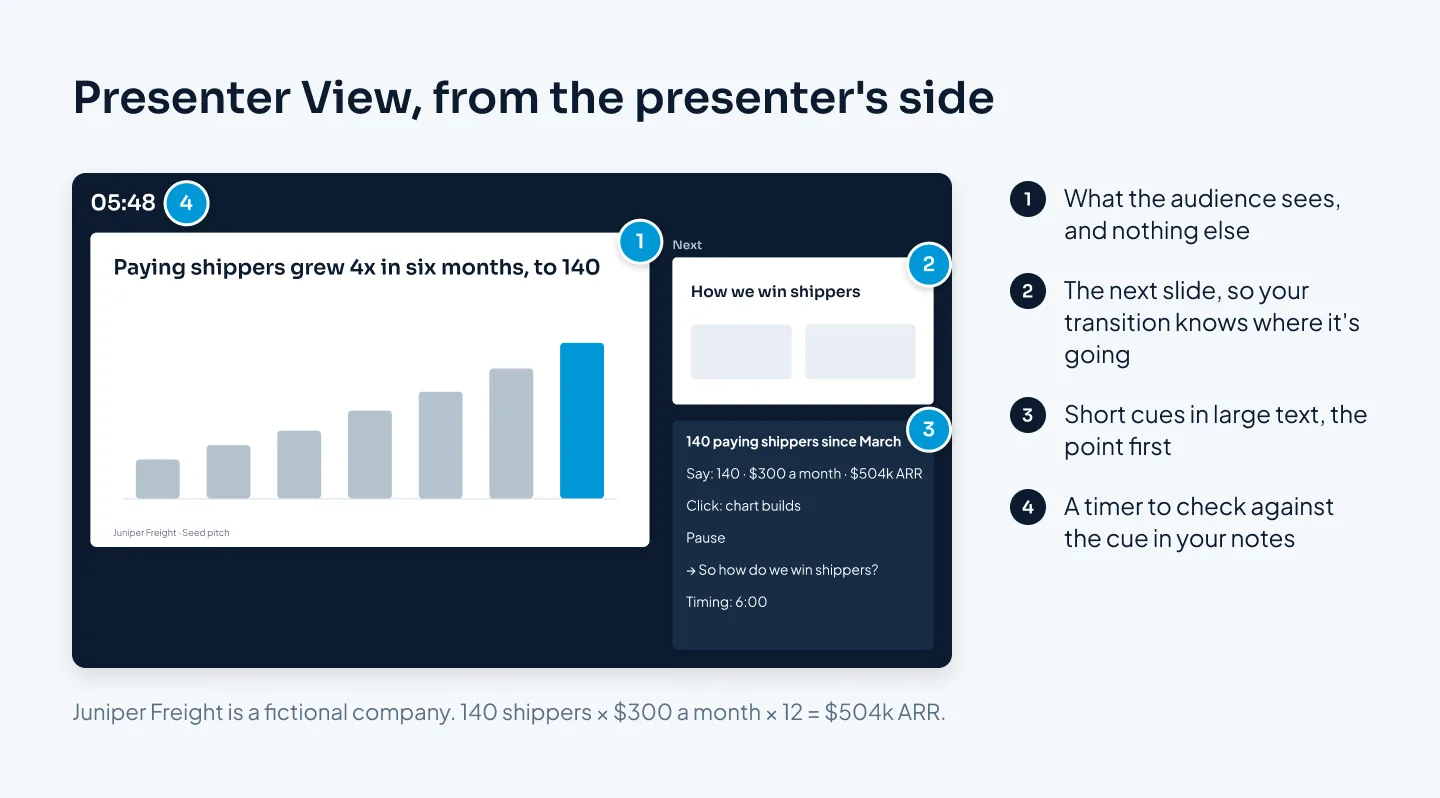
In PowerPoint, Presenter View is where they pay off. It shows the current slide, the next slide, your notes and a timer on your screen, while the audience sees only the slide.
Notes are for the person presenting. They travel with the PowerPoint file, though, so read them before you send the deck to anyone outside your team.
What to put in them
Write notes for the moment you'll need them: mid-talk, nervous, with a second to look. Six things earn a place.
The point of the slide, in one line. If you forget everything else, this is what you say. Often it's close to the slide's title, said in your own words.
The transition. One line that takes you to the next slide: "So how do we win shippers? That's next." Transitions are easy to forget under pressure, and they're what makes a talk sound joined up.
Anything you must say exactly. Numbers, names, dates, quotes, prices. Write "$504k" rather than trusting yourself to work it out live.
A timing cue. On the first slide of each section, write the time you should reach it: "Traction: 6:00". Our guide to how many slides a presentation needs shows how to plan those budgets from your time slot.
Stage directions. "Click: chart builds." "Pause." "Ask the room." "Play video." Anything you need to do, not say.
A pointer for likely questions. "If asked about churn: backup slide 22." You'll answer faster and look prepared.
What to leave out: anything already on the slide (you can see it), full paragraphs you'd have to read, and private reminders you wouldn't want a colleague to see if the file gets forwarded.
Keywords, sentences or a script?
There are three ways to write notes, and most good presenters mix them.
Keywords suit material you know well. "Launch March · 140 shippers · $504k ARR · pause on chart". They're fastest to read, but useless if you haven't rehearsed, because three words won't remind you of a point you never practiced.
Short lines suit most slides. One idea per line, a few words each, in the order you'll say them. They're specific enough to rescue you and short enough to read at a glance.
A full script suits only a few moments: your opening, your close, and anything where the exact wording matters, such as an announcement, a sensitive message or a statement your legal team has approved. Write those out, rehearse them until you nearly know them, and use the script as a safety net.
For everything else, a script hurts more than it helps. Reading sounds like reading. Your pace flattens, your eyes drop, and the room can tell.
Here's the same traction slide from Juniper Freight, a fictional freight booking startup, with notes written two ways.
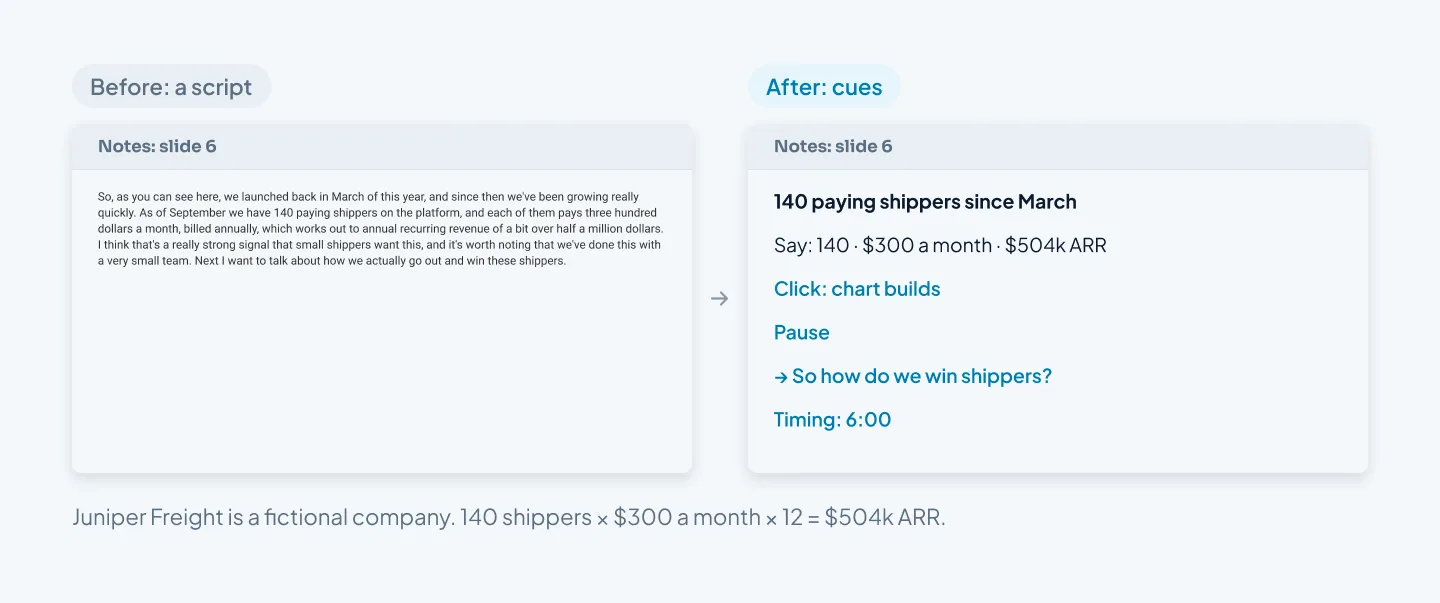
The cues on the right hold everything the script did that you actually need: the point, the three numbers to say exactly, a reminder to pause, the way into the next slide and the time you should be there. The rest, you say in your own words.
A few formatting habits make notes faster to read:
Large text. Make the notes text big enough to read at arm's length, and write fewer words so it fits.
The point first, in bold. Your eye lands on it before anything else.
One idea per line, with line breaks instead of long sentences.
The same markers on every slide, such as an arrow for the transition and "Click" for builds, so you never have to work out what a line means.
Notes should help you find your place in a second, not read your way through a minute.
Notes in Presenter View
In PowerPoint, type notes in the Notes pane, which sits below the slide in Normal view. If you can't see it, click Notes on the status bar at the bottom of the window.
When you present in Presenter View, you get the current slide, the next slide, your notes and a timer, while the audience sees only the slide. Seeing the next slide is useful in itself: it tells you what your transition needs to lead into.
Three situations need a little planning.
Presenting online. Share only the slideshow window, not your whole screen, so your notes stay private. PowerPoint can also play the slide show in a window ("Browsed by an individual (window)" in Set Up Slide Show), which helps when you're sharing one window from a single screen. Our guide to webinar slides covers screen sharing in more detail.
Presenting on stage. You may not get Presenter View at all. Some venues give you a confidence monitor instead, which may show only the current and next slide, without notes. Ask the AV team what it will show, as our guide to conference presentation design suggests, and rehearse enough that the slides alone can prompt you.
Recording a presentation. In Microsoft 365, the Record tab can show your notes at the top of the screen as a teleprompter while you record.
Printing your notes
A printed copy is a good backup if a screen fails. View > Notes Page shows the printed layout: the slide image with its notes underneath. You can then print the deck as Notes Pages. Text that doesn't fit the notes placeholder prints on an extra page, which is one more reason to keep notes short.
Notes in Google Slides
In Google Slides, notes go in the speaker notes box under the slide. If it's hidden, choose View > Show speaker notes.
To present with them, open the Slideshow drop-down and choose Presenter view. Your notes and a timer appear in a separate window, while the slide show runs in the main one. Put the notes window on your own screen and the slide show on the screen the audience sees.
Presenter view in Google Slides also has audience Q&A, which lets people submit questions from their own devices while you present. It's useful in large rooms and online, where hands are hard to spot. Google Slides can also show live captions while you present.
The writing advice above applies unchanged. Short cues, the point first, exact numbers written out.
Rehearse with your notes
Notes you've never rehearsed with are notes you won't use well. Three rounds of rehearsal turn them into a tool.
First, rehearse aloud with the notes in front of you, in Presenter View, on the kind of setup you'll present from. Time each section against the cues you wrote. Wherever you stumble, add a line. Wherever you never looked down, cut the notes back.
Second, try Speaker Coach. In PowerPoint for the web and Microsoft 365 (Windows and Mac), Slide Show > Rehearse with Coach listens while you practice. It gives feedback on your pace, pitch, filler words and informal speech, and on whether you're reading the slide text, then shows a rehearsal report at the end. It needs a microphone and an internet connection, and it works in English only.
Third, rehearse once without notes. If you can get through with the slides alone, the notes become a safety net, which is exactly what they should be. If you can't, you know which slides to practice again.
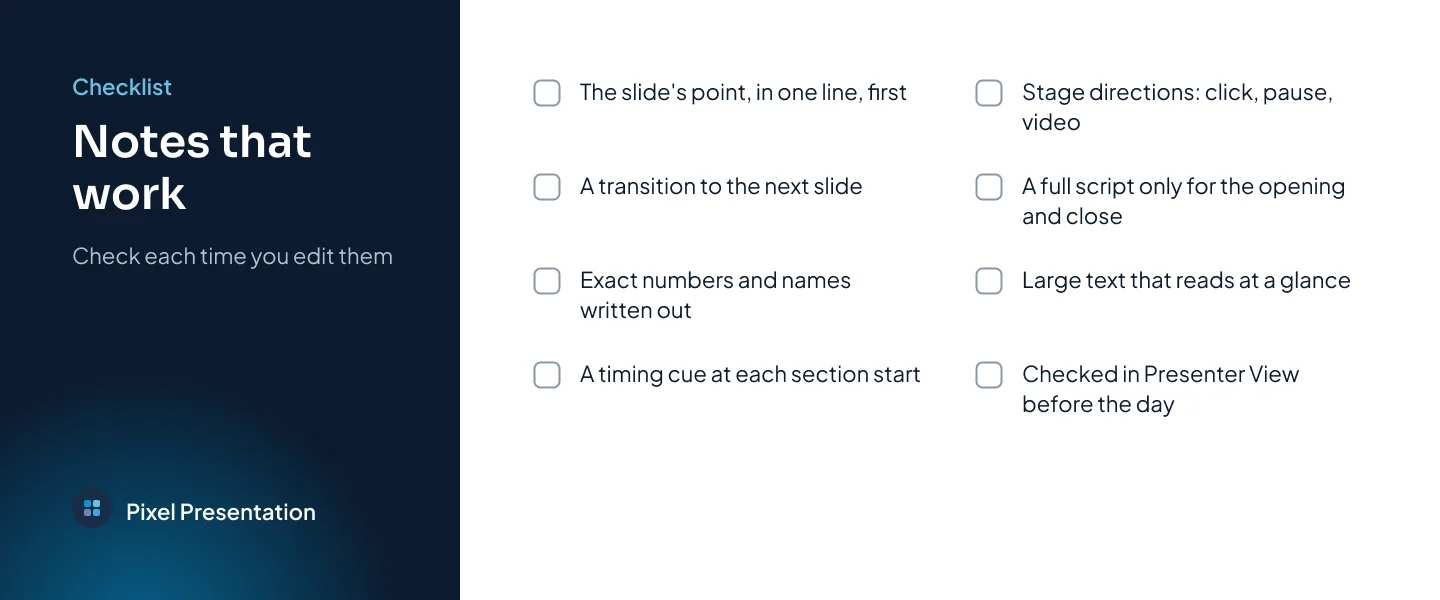
After each round, edit the notes. Notes get better the way slides do: by cutting what you don't use. Run through this list each time you edit them.
Notes for someone else to present
Some decks are presented by people who didn't write them: a sales team using a standard pitch, facilitators running the same training, an executive presenting work their team did. Their notes need more than yours would.
Write them so a capable stranger could present the slide well after one read:
The point and why it matters, in two short lines. The presenter needs to believe it to say it well.
The example or story, in a few cues, so the slide doesn't become a list of claims.
Exact numbers, with their source and date, so nobody improvises a figure.
What to skip when time is short. Mark slides or lines as optional, so a 30-minute version and a 15-minute version come from one deck.
Likely questions, with short answers, and the backup slide to show.
Names to pronounce, and who to send follow-up questions to.
Keep the format the same on every slide, so presenters learn where to look. Put a date or version in the notes of the first slide, so everyone knows which numbers are current. Training decks lean on this most of all, and our guide to training presentations covers notes written so any facilitator can run a session.
For a deck built for the stage, see our Aligned Mindset case study: a conference keynote deck.
If you'd like the whole deck designed with notes in place, our PowerPoint presentation design service covers it, and PowerPoint design takes 3–6 working days once we have your content and brief. The pricing estimator shows the exact price, notes included.